The “fresh” terminal editor is a brand new editor you can use in your Linux terminal sessions. It’s a powerful replacement for the nano editor because it supports use of your mouse, split screen editing, a file manager, and intuitive shortcuts for common editing functions.
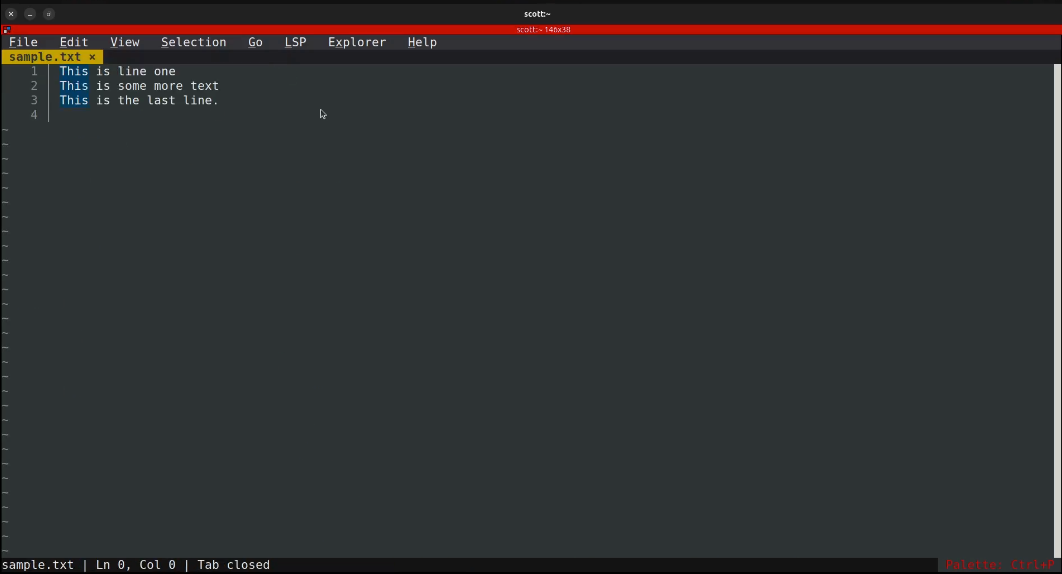
Fresh is very new and currently has no apt repository, no entry in flathub and no snap packages. Since it receives frequent updates, I have developed a script and an automated cron job to download and update the AppImage version of the application on your system.
To install “fresh”, install some dependencies.
sudo apt install curl nano -y
Update your path:
export PATH="$HOME/.local/bin:$PATH"
Make a folder for the application. It is a best practice to create an applications folder for your AppImages. The “-p” option only creates the folder and all paths to it if they do not currently exist.
mkdir -p $HOME/Applications/fresh
The $HOME is an environment variable that always points to the home folder of the current user. Go create the script:
nano $HOME/Applications/fresh/update-fresh.sh
Insert the following text into the nano editing session.
#!/usr/bin/env bash
set -e

APP_DIR="$HOME/Applications/fresh"
APPIMAGE="$APP_DIR/Fresh.AppImage"
WRAPPER="$HOME/.local/bin/fresh"

echo "[INFO] Ensuring directories exist..."
mkdir -p "$APP_DIR"
mkdir -p "$(dirname "$WRAPPER")"

echo "[INFO] Checking Fresh release..."
LATEST_VERSION=$(curl -s https://api.github.com/repos/sinelaw/fresh/releases/latest \
    | grep '"tag_name":' | sed -E 's/.*"v([^"]+)".*/\1/')

DOWNLOAD_URL="https://github.com/sinelaw/fresh/releases/download/v$LATEST_VERSION/fresh-editor-$LATEST_VERSION-x86_64.AppImage"
echo "[INFO] Download URL: $DOWNLOAD_URL"

echo "[INFO] Downloading Fresh from: $DOWNLOAD_URL"
curl -L "$DOWNLOAD_URL" -o "$APPIMAGE"
chmod +x "$APPIMAGE"

echo "[INFO] Creating wrapper at $WRAPPER"
cat > "$WRAPPER" <<EOF
#!/usr/bin/env bash
"$APPIMAGE" "\$@"
EOF
chmod +x "$WRAPPER"

echo "[INFO] Done. You can now run 'fresh' in this terminal and new terminals."
echo ""
echo "Installed Fresh AppImage:"
ls -lh "$APPIMAGE"
echo "Wrapper path:"
ls -lh "$WRAPPER"
Save the file with a CTRL O and enter and then CTRL X to exit the nano editor.
Give the script execute privilege which is required.
chmod +x $HOME/Applications/fresh/update-fresh.sh
Execute the script to install “fresh”.
$HOME/Applications/fresh/update-fresh.sh
Let’s set the program up to update to the latest version every day by making an entry in your cron table:
crontab -e
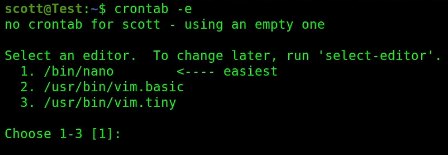
Choose the default option 1 to edit your cron table.
Move to the bottom of the file and insert this line:
@daily "$HOME/Applications/fresh/update-fresh.sh" >> "$HOME/Applications/fresh/update.log" 2>&1
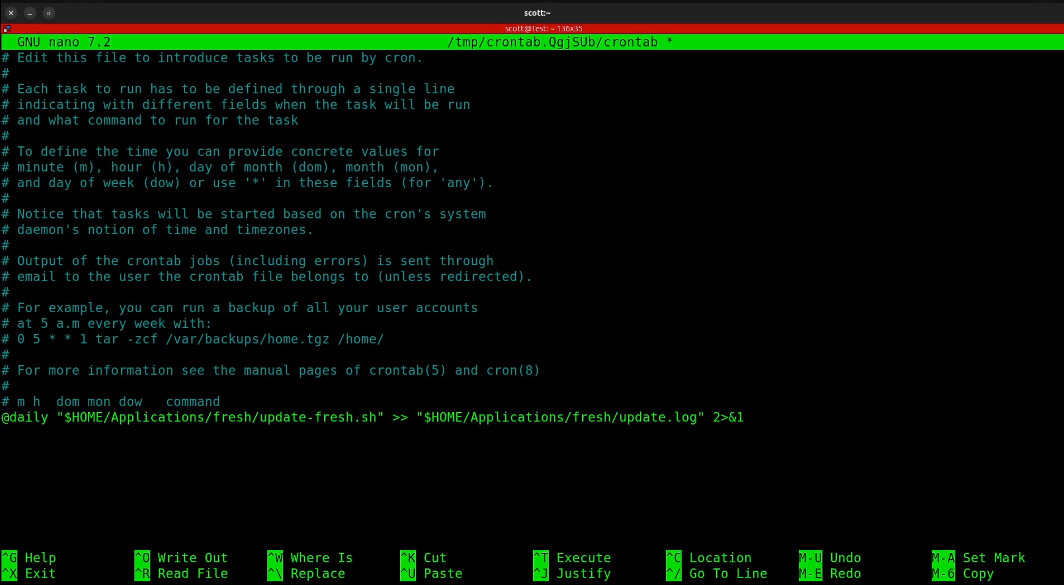
Do a CTRL O and enter to save the file and a CTRL X to exit the nano editor.
The cron job you just created will run daily to install the latest version of “fresh”. You could use variations of this script to keep other AppImages on your system up to date.
To test the cron job:
/bin/bash -c "$HOME/Applications/fresh/update-fresh.sh >> $HOME/Applications/fresh/update.log 2>&1"
You can list the log from the cron job:
tail -n 50 ~/Applications/fresh/update.log
At this point, fresh is installed and will update automatically. To see the version of fresh that is installed.
fresh --version
Fresh is a great new option for a terminal editor. Don’t forget to support the author and consider a Zelle to me at vmsman@gmail.com if you like this content and want to see more.
Also, come by the chat to ask questions or say hi.
https://chat.scottibyte.com