SSHFS is a network file system like CIFS, NFS, and AFS. SSHFS is encrypted and uses openssh-server just like Secure File Transfer Protocol (SFTP) except that it can mount remote file systems.
In past videos I have used SFTP as an easy mechanism to do drag and drop file copies from my Linux desktop file manager to LXD & Incus containers as well as servers that do not have a GUI interface.
As a quick review, to use SFTP, we install openssh-server (or just ssh) on your local server.
sudo apt install openssh-server
We can then log into a remote system that has openssh-server installed on it from our server.
ssh scott@172.16.2.35
This ssh command will prompt for a password. You can remove the password requirement by establishing an ssh key pair which we will describe later.
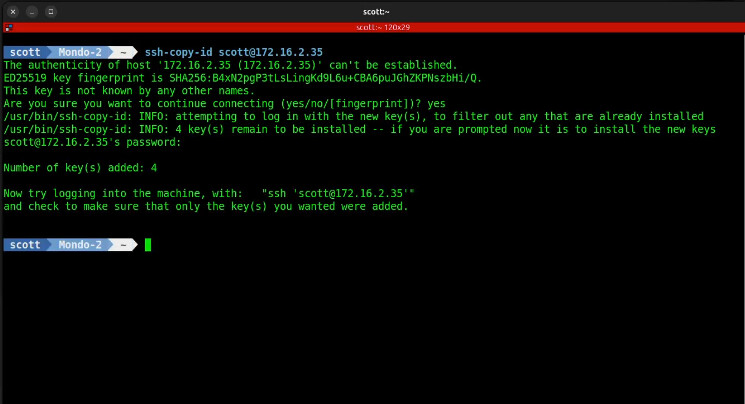
Assuming the key pair exists, it is possible to share your public key with a remote server thus removing the password requirement in the future. As an example:
ssh-copy-id scott@172.16.2.35
Then, SFTP can be used from my Linux desktop file manager to access the file system on the remote server that has no GUI installed.
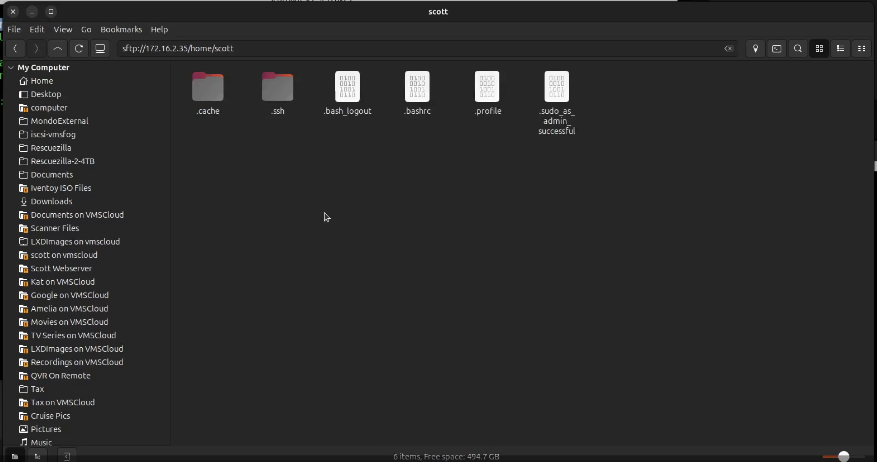
This would allow me to drag and drop files from my desktop to the server that has no GUI interface installed.
Secure SHell File System (SSHFS) is different from SFTP because it actually allows remote file systems to be mounted into a mount point.
In the tutorial, “Test2” is an incus container (Linux server) where I have installed:
sudo apt install openssh-server
Test1 is an incus container that I used to access files on the Test2 server.
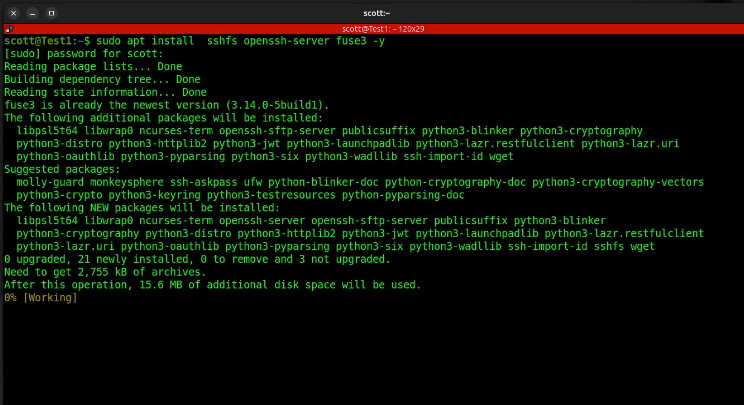
I installed the following on Test1:
sudo apt install sshfs openssh-server fuse3 -y
On “Test1” I created a folder to use as a mount point for our sshfs file system on “Test2”.
mkdir -p ~/remote
I sshfs mounted the /home/scott folder on Test2 to this folder and the IP address of Test2 is 172.16.2.35.
sshfs scott@172.16.2.35:/home/scott ~/remote
This will ask us to confirm a host signature the first time we connect and we will be prompted for the password for the scott account on Test2 any time we want to mount the sshfs file system.

From that point you can move into the mount point and access the files on Test2.
cd remote
ls
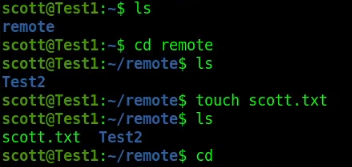
You can dismount the folder as long as you are not inside of the mount point. You can use either of the following commands to dismount the sshfs file system.
fusermount -u ~/remote
umount ~/remote
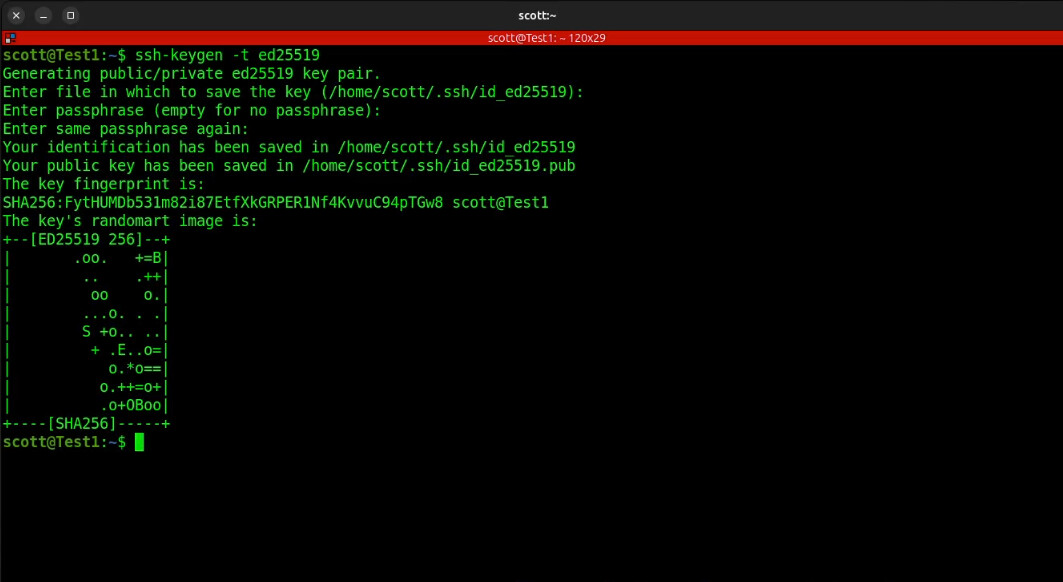
If you want to mount your sshfs volume without providing a password, this can be done by first generating a public and private ssh key pair.
ssh-keygen -t ed25519
Copy your public key to the remote server.
ssh-copy-id scott@172.16.2.35
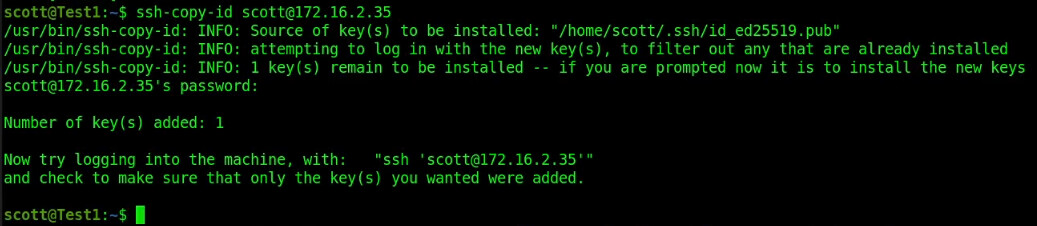
With the key shared to the Test2 server, the mount command becomes:
sshfs -o IdentityFile=~/.ssh/id_ed25519 scott@172.16.2.35:/home/scott ~/remote

SSHFS file systems provide a powerful and secure way to access files on remote systems.