This is a comprehensive web-based backup utility for Incus containers and incus VM’s that allows both importing and exporting backups to and from your Incus Servers.
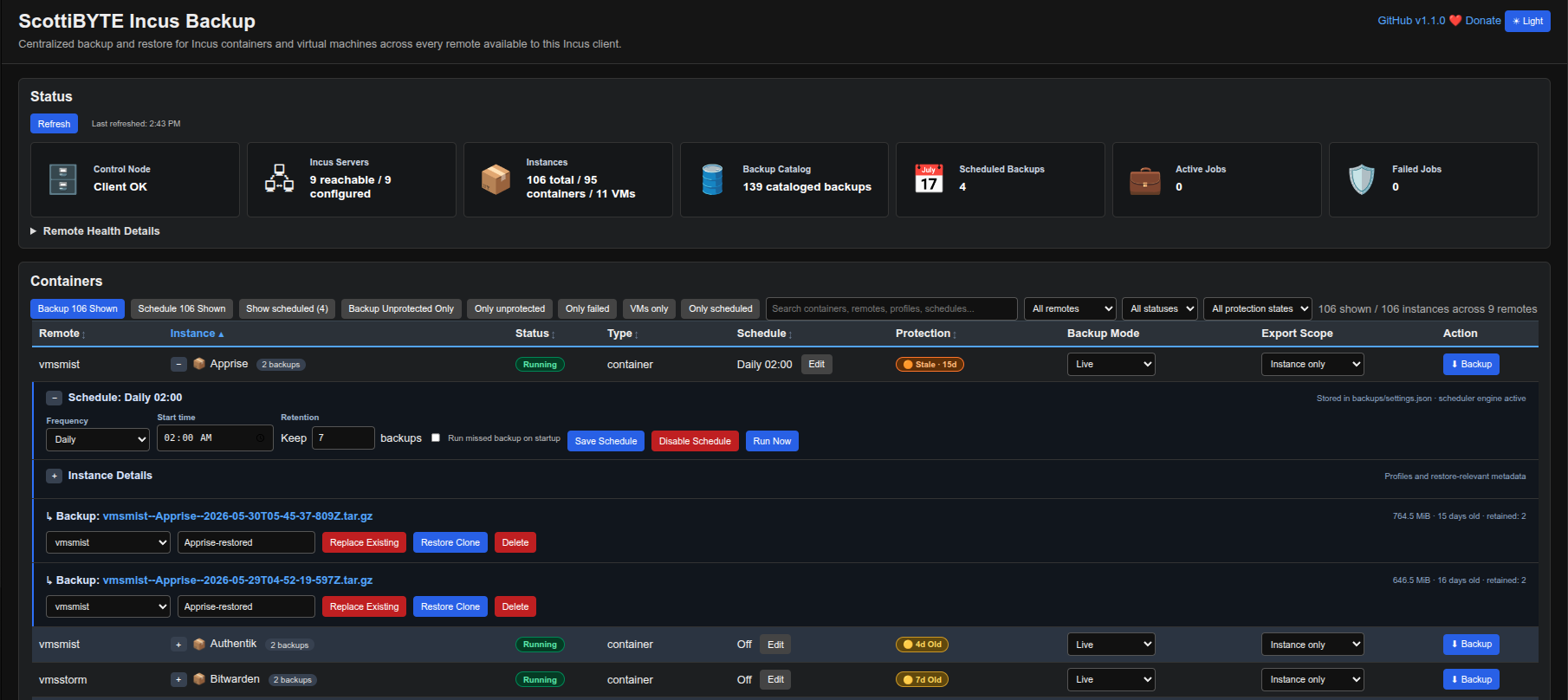
UPDATE: This project has had several enhancements since the video tutorial. You might want to read the release notes here. My docker repository is here. My new features video is here and a screenshot of how it looks now is below. Notably, automated backup schedules are an important addition to this utility.
I created an Incus container to host the application. The required “bridgeprofile” is explained in my Incus Containers Step by Step tutorial.
incus launch images:ubuntu/26.04 IncusBackup -p default -p bridgeprofile -c boot.autostart=true -c security.nesting=true
Move inside the new container.
incus shell IncusBackup
Accept the updates and modernize your repository lists.
apt update && apt upgrade -y
apt modernize-sources
Install the required dependencies.
apt install curl net-tools nano incus-client openssh-server -y
Install docker from the script at the docker website.
curl https://get.docker.com | sh
Create a user account and put it the sudo and docker groups.
adduser scott
usermod -aG sudo,docker scott
Log into the new account.
su - scott
Create the required folder structure.
mkdir -p incusbackup/{backups,uploads} && cd incusbackup
Edit the host file and make entries for one or more Incus servers.
sudo nano /etc/hosts
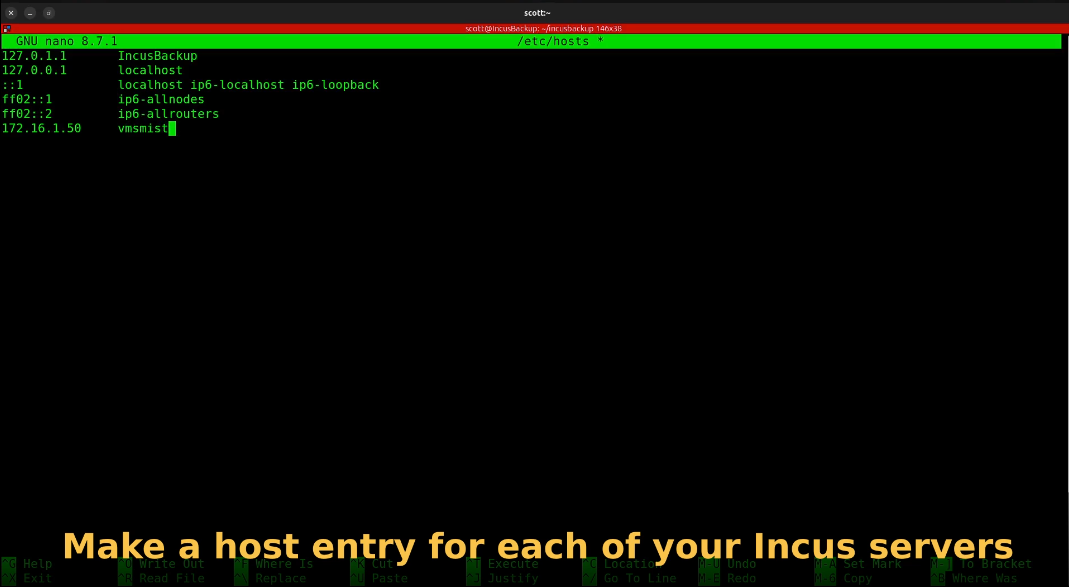
We need to create a trust for this incus container so that it is allowed to access the Incus server. I start by adding a trust on vmsmist via ssh. Your server name (vmsmist) will differ.
ssh vmsmist "incus config trust add IncusBackup"

I add the remote server using the certificate above. Be sure to change “vmsmist” to your Incus server name in both places in the following command.
incus remote add vmsmist https://vmsmist:8443 --accept-certificate

You can always see which servers with which you have trusts with the following command:
incus remote list
Follow the video to see me perform establishing a trust.
If you have more than one incus server you want to manage backups on, simply repeat the process for each above to establish the trusts.
Create a docker compose file.
nano compose.yml
Insert the following into the file.
services:
  incusbackup:
    image: scottibyte/incusbackup:latest
    container_name: incusbackup
    restart: unless-stopped

    ports:
      - "80:3030"

    environment:
      PORT: "3030"
      INCUS_CONF: /incus-client
      INCUS_BACKUP_DIR: /app/backups
      INCUS_COMPLETED_JOB_TTL_MS: "180000"

    volumes:
      - ./backups:/app/backups
      - ./uploads:/app/uploads

      # Read-only host Incus trust mount
      - ${HOME}/.config/incus:/incus-client:ro

    security_opt:
      - no-new-privileges:true

    healthcheck:
      test: ["CMD", "curl", "-f", "http://localhost:3030"]
      interval: 30s
      timeout: 10s
      retries: 3

    labels:
      - "com.centurylinklabs.watchtower.enable=true"
Run the following command to download the container overlays from docker hub to create the container and start the application.
docker compose up -d

Check the status.
docker ps

Find out the address of your container.
ifconfig
Look for the address of your eth0 device. Yours will differ.
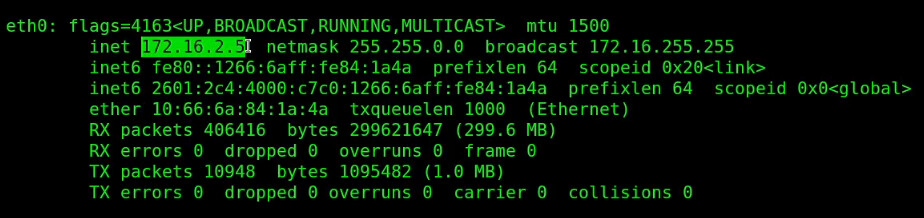
Put that address into your web browser and you should be directed to the web interface.
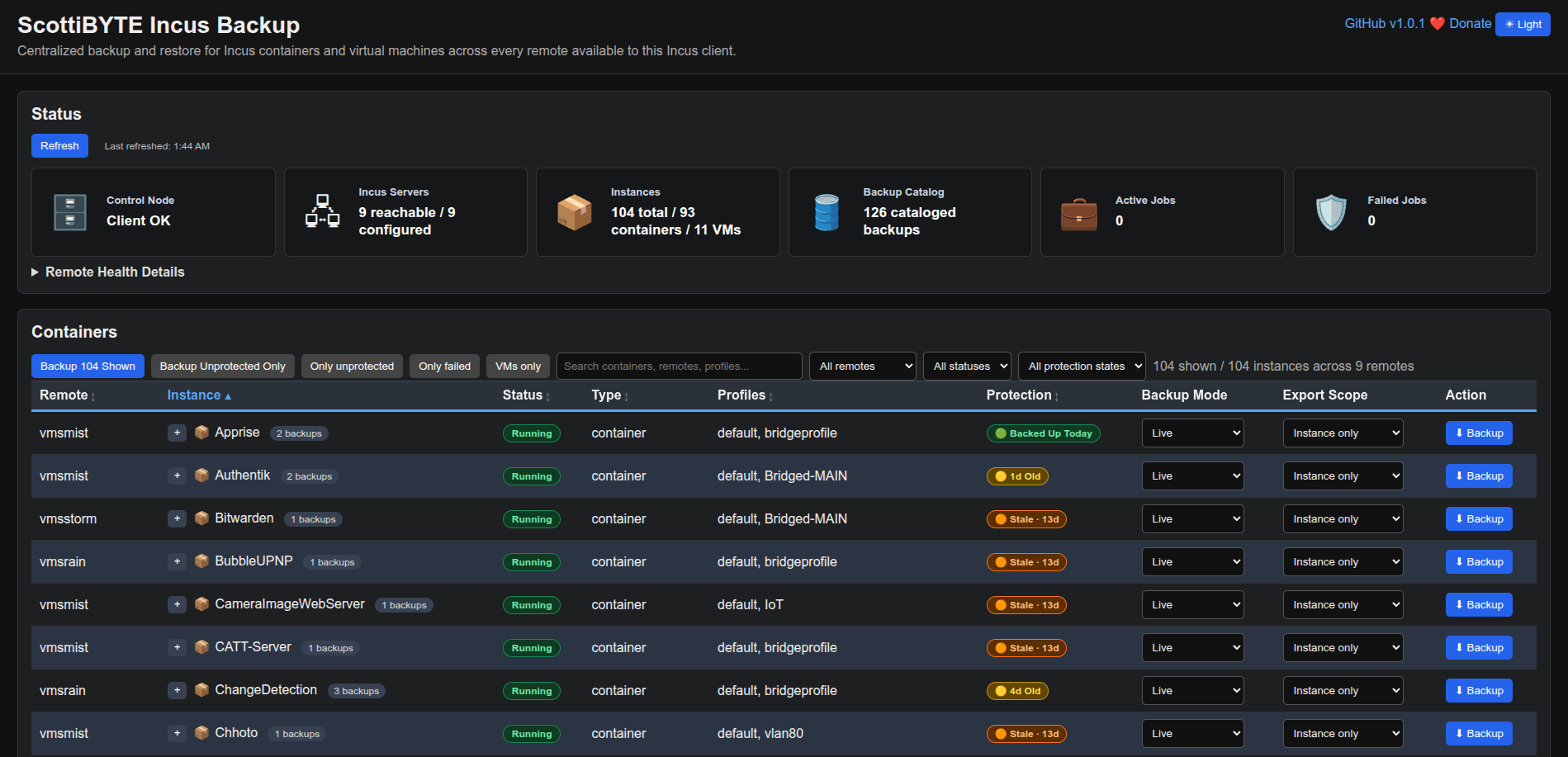
Realize that at this point each time you create a backup, it will go into the “backups” folder in the Incus Backup Utility container.
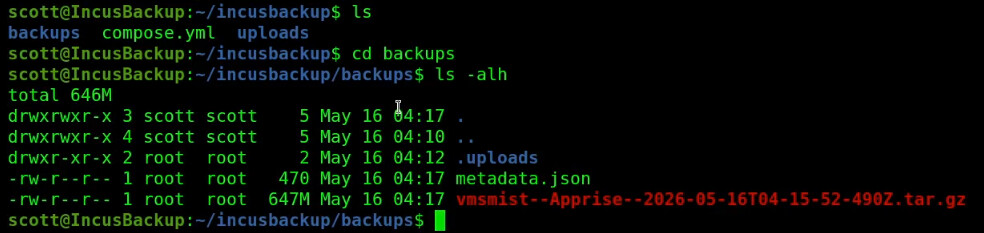
This is not ideal because you really want your backups to be stored outside of Incus for security and practical reasons. Realize that each backup will increase the size of the “incusbackup” container and the space comes out of your default storage pool.
To avoid this, log on to your incus server and create a folder in your home directory.
mkdir incusbackup
Incus lets you “map” a folder inside of an incus container back to the incus server on which it is hosted. As an example, the folder above is now “/home/scott/incusbackup”. We already know that the container has a folder named “/home/scott/incusbackup/backups”. So, the command to map them to each other is performed on your Incus server where the “IncusBackup” container is hosted.
incus config device add IncusBackup backup disk source=/home/scott/incusbackup path=/home/scott/incusbackup/backups
Realize that you need to change the “scott” username in the command above in both places to your username.
With this mapping, the incus server can store data on the container, but the container cannot store data back and our application needs to have write access. If you followed my “incus containers step by step” tutorial then your user ID on the server is 1000:1000 and the username you created on the container is 1001:1001.
The following two commands provide the privilege for the container to write files back to the incus host.
echo "root:1000:1" | sudo tee -a /etc/subuid /etc/subgid
incus config set IncusBackup raw.idmap="both 1000 1001"
The last thing we need to do is to restart the incus container to make this all work.
incus restart IncusBackup
Now when you do backups, they will be stored on the Incus host in the “incusbackup” folder inside your home folder.
If you want to take this a step farther, establish an NFS export on a NAS on your network. Then you can use the “incusbackup” folder on the Incus server as a mount point for your NFS service.
Creating the NFS export on your NAS is outside the scope of this tutorial. Assuming you know how to do that, you can then edit your file systems table on your Incus server to mount the NFS volume.
sudo nano /etc/fstab
Then you would insert a line somewhat like the following depending on your server.
172.16.1.58:/incusbackup /home/scott/incusbackup nfs vers=3,proto=tcp,hard,intr,nofail,_netdev 0 0
Assuming your have the above mapped to your NAS correctly, you can then see if it will mount,
sudo mount -a -t nfs
If it worked, then you will have to restart your incus container once again.
incus restart IncusBackup
Now, when you do backups in the ScottiBYTE Incus Backup Utility, the backup files would be stored on your NAS. That would be ideal.
I hope you enjoy this utility and it took me a long time to create.
