VPN connections from outside your network inwards generally provides access to all your systems. Learn how to restrict that access on UbuquitI Unifi Gateways.
You can create VPN servers on your Unifi Gateway and add users to them which allows you and others to access your systems in your HomeLab remotely and securely just as though you are at home.
By default, Unifi VPN servers provide access to your entire network. This tutorial discusses how to limit external VPN access to selected networks or even systems. In this presentation, I created a “Test VLAN” network and a “Test VPN” server. I created a user who can access all systems on the “Test VLAN”, but they are blocked from accessing my “Main LAN”, “IoT VLAN”, “DMZ VLAN” and my “Labnet VLAN. Here’s how that might look.
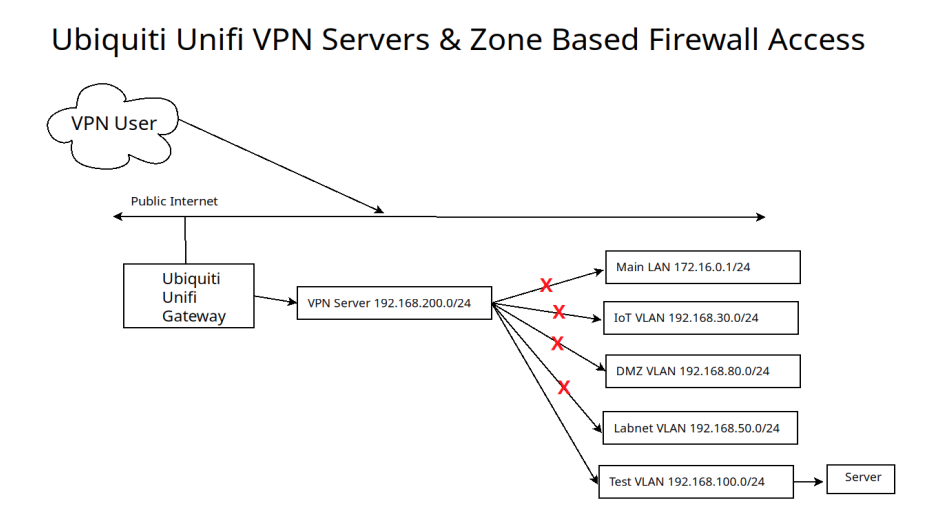
I started by creating a new VPN server in addition to the ones I had. I like having a VPN server that I know has users that are restricted.
Go to the Unifi Network Controller web interface and click on the settings gear, then VPN and then “Create New”.
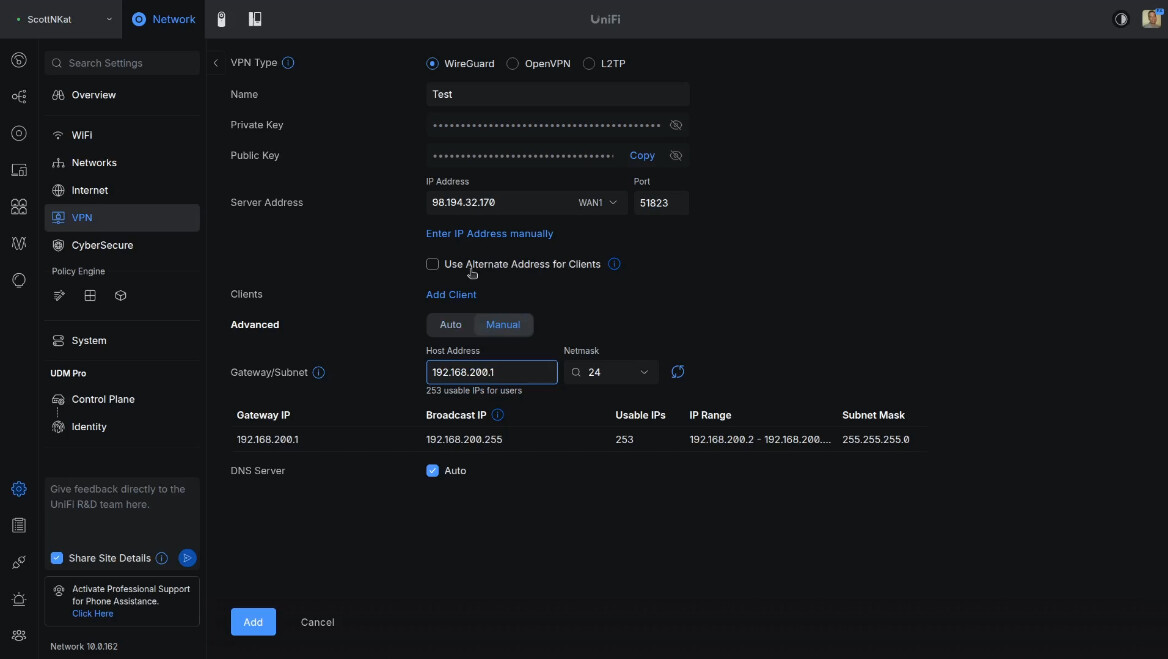
My VPN server is addressed in the 192.168.200.0/24 range and that means that any VPN users that I add to it will be in that range. After adding the VPN server from the screenshot above, I added a client user.
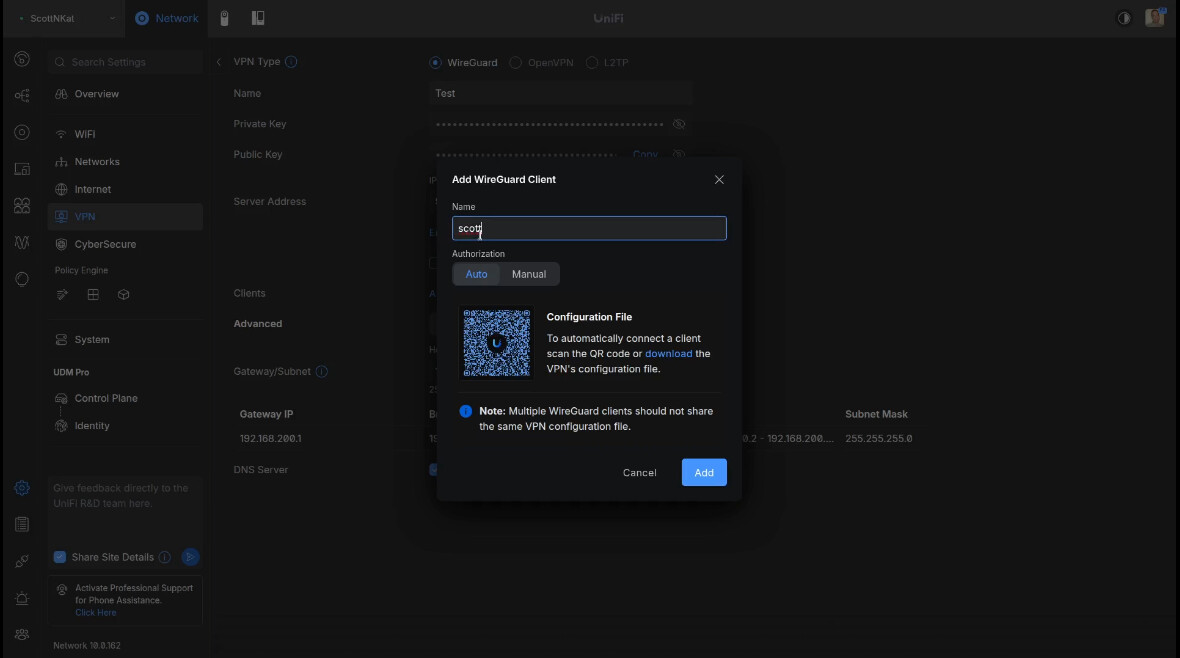
Click the “download” link above to save a copy of the Wireguard configuration file for the user and then click “Add”.
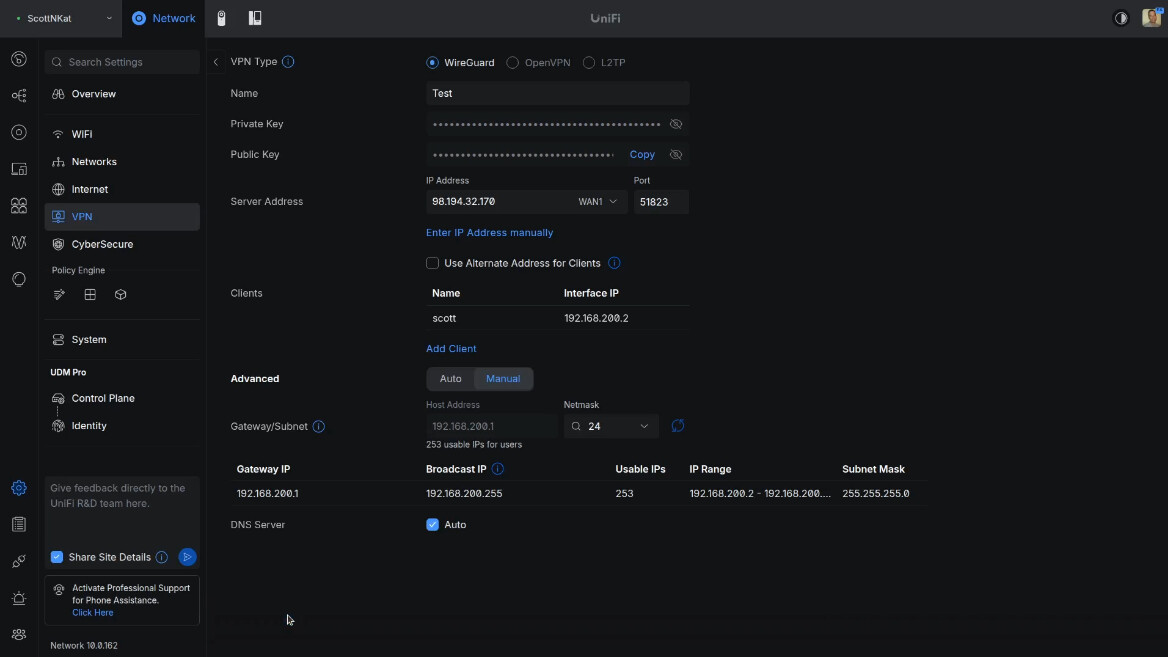
The screen below shows that the client user “scott” has been added to the new server and the user is granted the address 192.168.200.2 for connection to the VPN.
I created a VLAN 100 as a Test network with address range 192.168.100.0/24 for the tutorial.
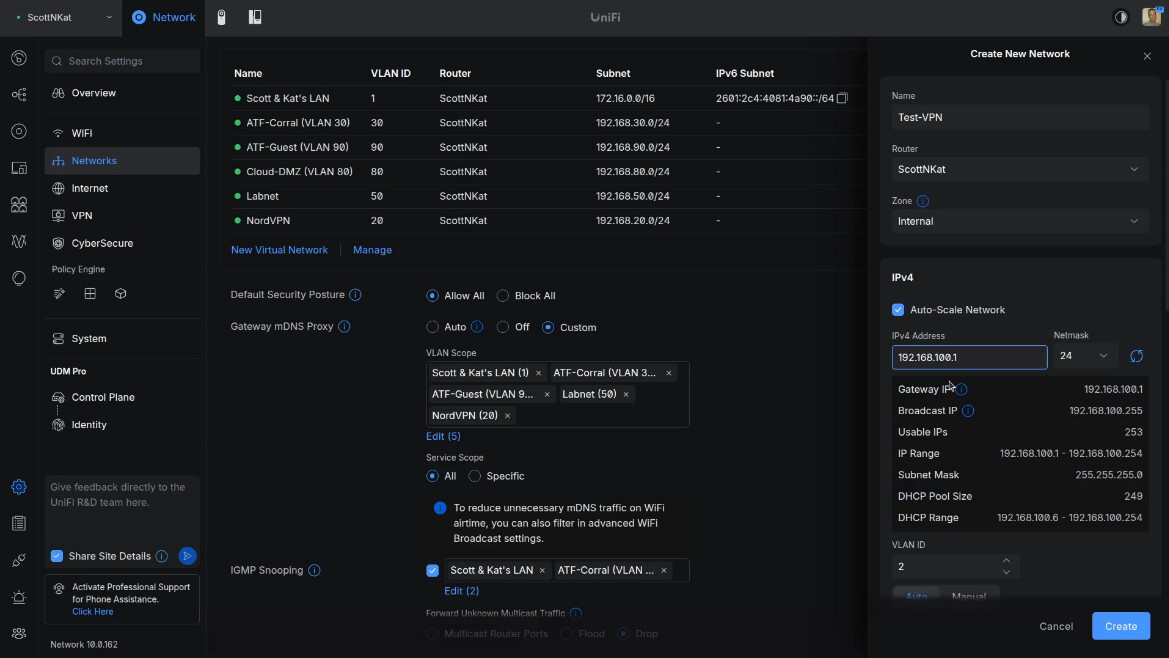
I edited the new vlan and decided to change the new network to vlan 100 because I like documenting my vlans by matching the third octet of the address range with the vlan number if practical.
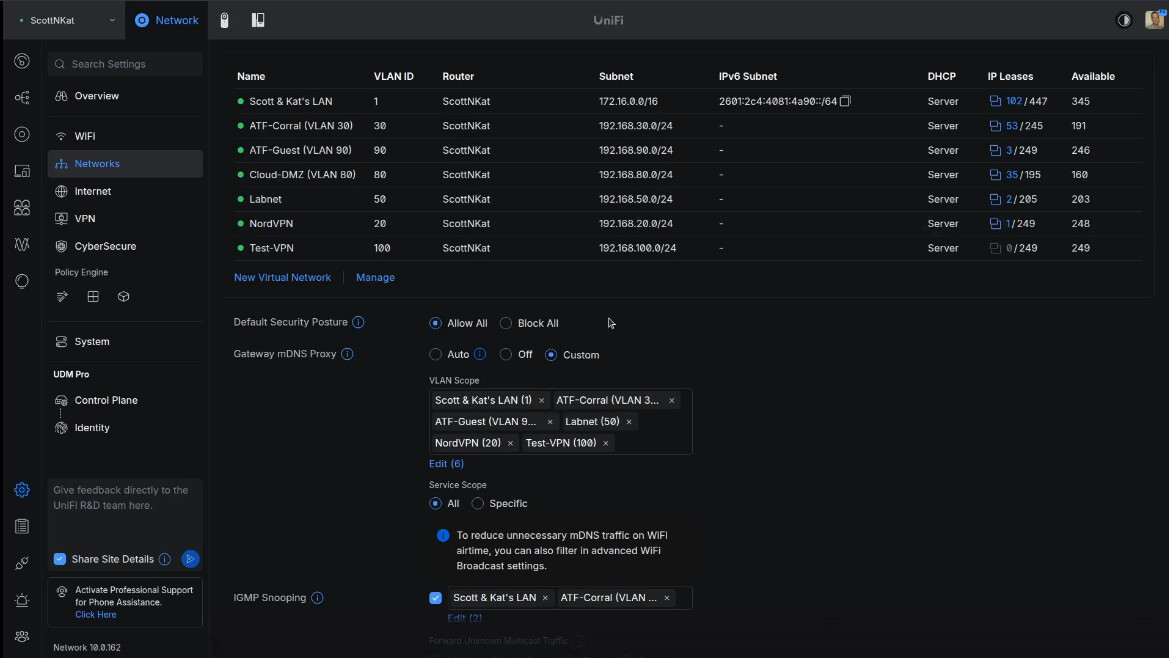
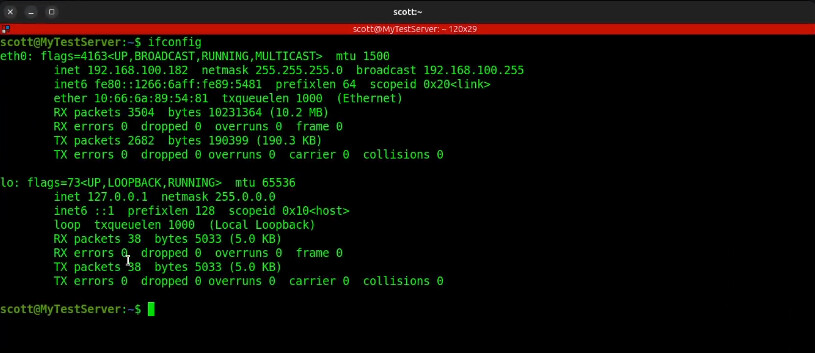
For testing purposes, I created an incus container on VLAN 100 for testing and it has the address of 192.168.100.182.
At this point, our VPN user “scott” would have access to everything on my network. I want to limit that. I didn’t want to conflict with my production environment and so I created a Test Zone to move the “Test-VPN” network into.
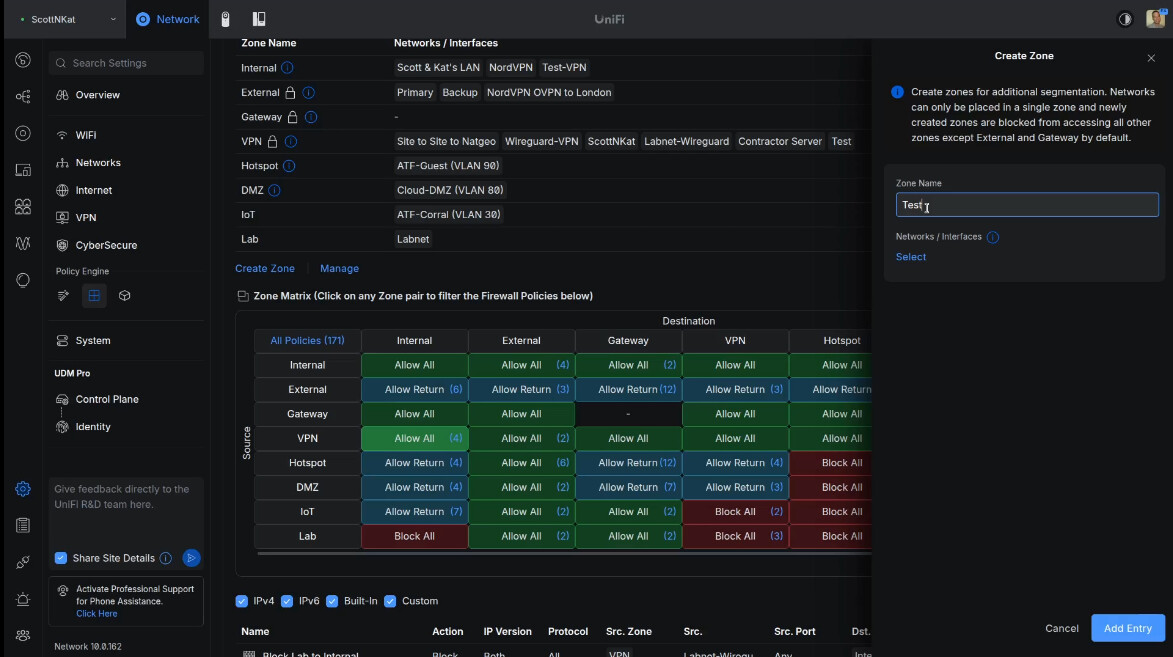
I edited the “Test” zone and moved the “Test-VPN” network into it.
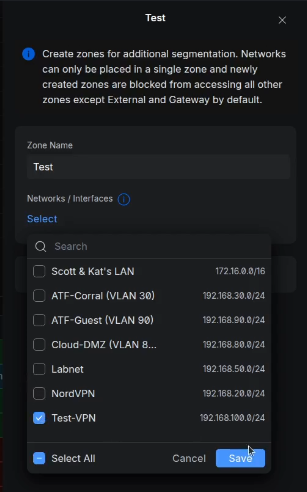
The result is below.
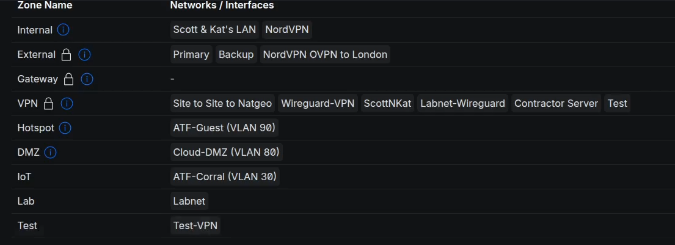
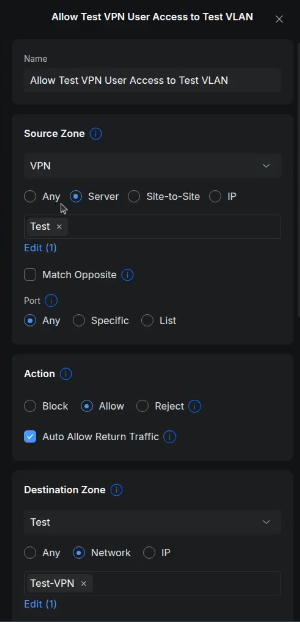
I selected the Source Zone as VPN and the Destination Zone as Test in the tutorial. Initially the Test Zone is blocked. I added a policy to grant all users from the Test VPN to be able to access the Test-VPN network inside the Test Zone.
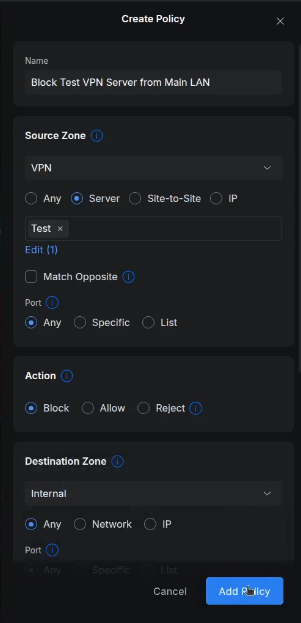
Next, I create another policy to block all access from the Test VPN users to my MAIN LAN, IoT VLAN, DMZ VLAN, and Labnet VLAN. Here’s an example of the rule to block access to the main lan.
To test this, I went to an Ubuntu Desktop on my main LAN. That system, by default can access everything. A real test would have been to take this system outside my network. However, I can demo this accurately.
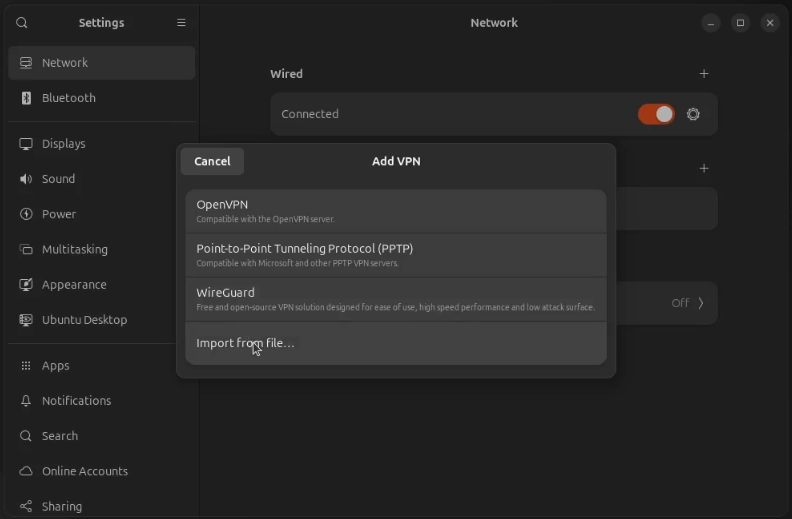
My Ubuntu deskop has a local address of 172.16.2.49. I opened the settings window in Ubuntu. Go to “Network”. Click on the option to add a VPN connection and select “Import from file…”.
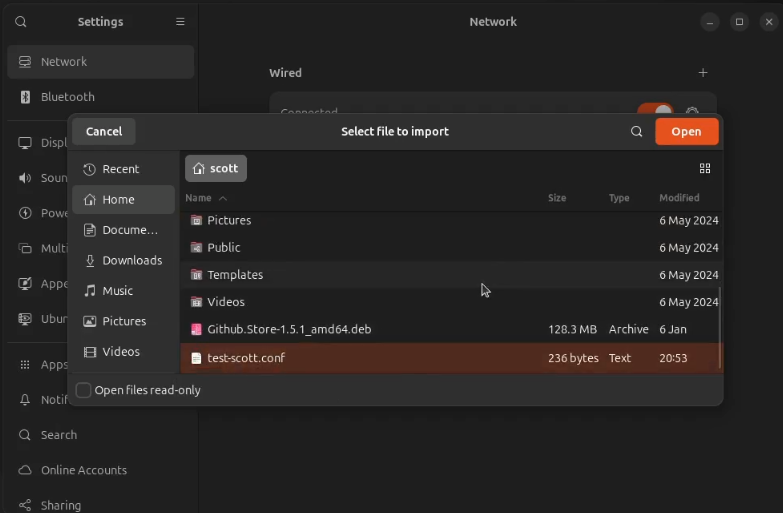
I imported the test-scott.conf file that I exported when I created my user in the Unifi VPN server.
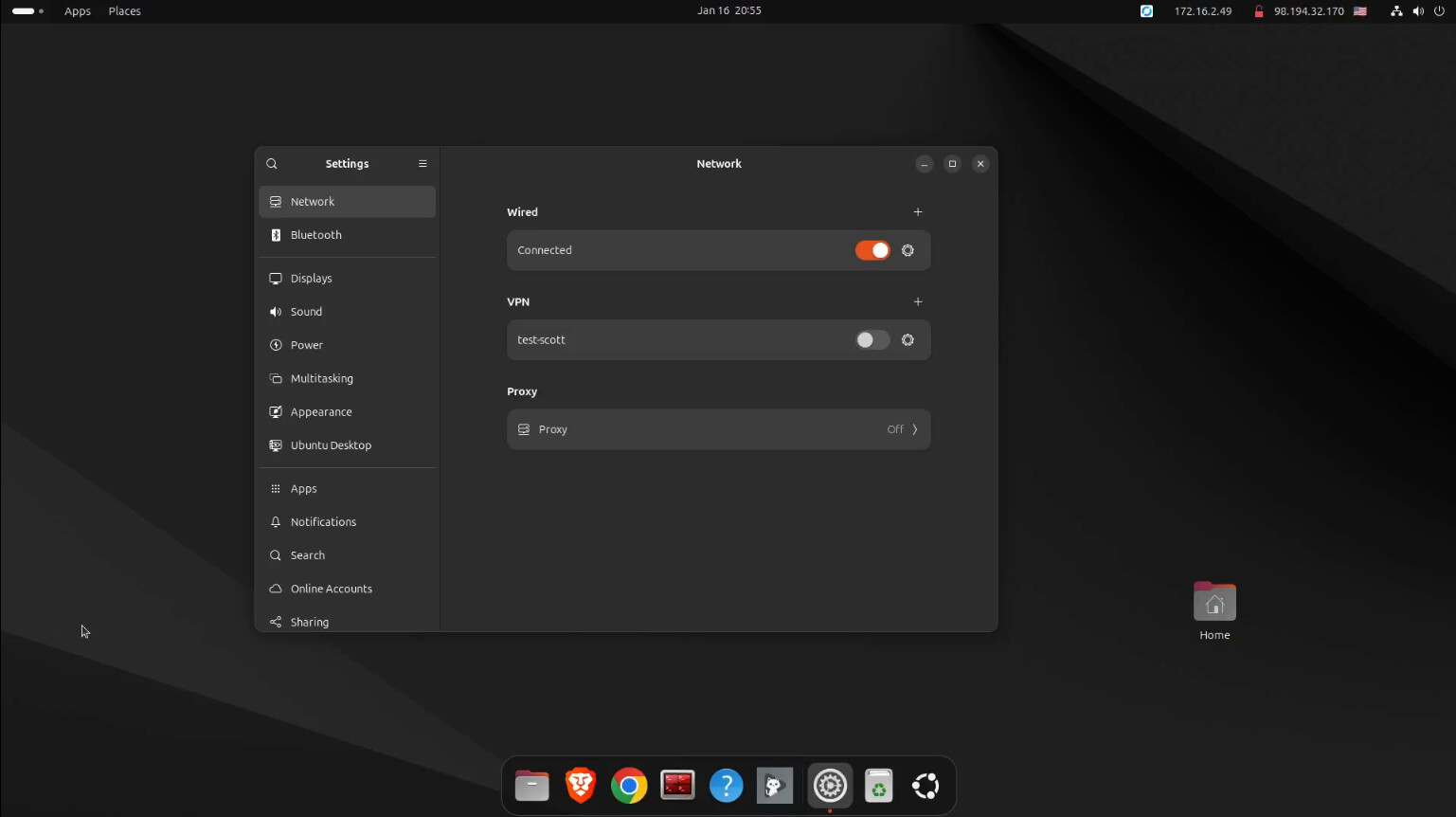
Here’s my VPN client configured.
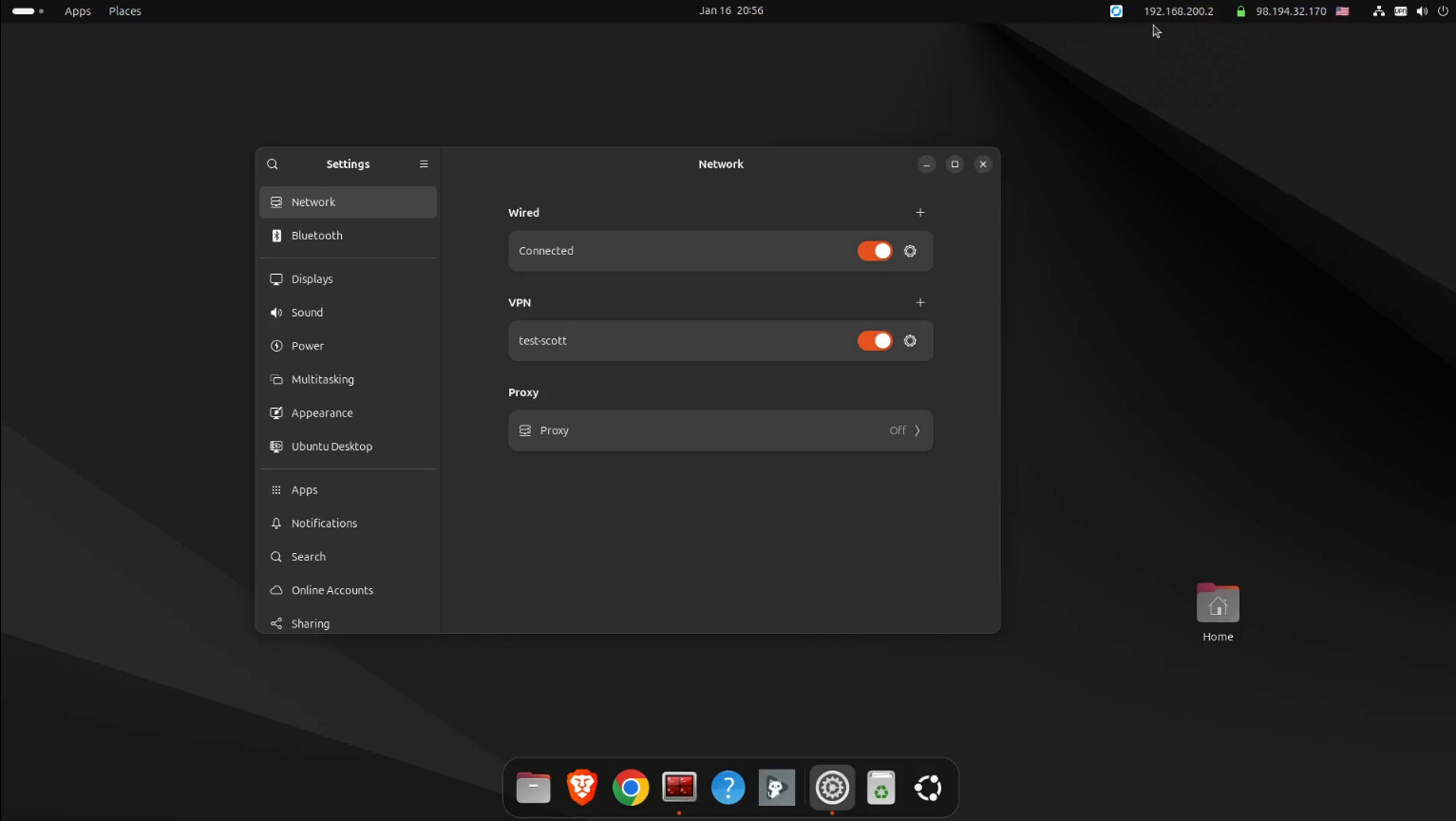
Once I turn the VPN on, the address of the Ubuntu desktop changes to 192.168.200.2 as defined for the scott user.
I am able to ssh to the test container in virtue of the allow policy.
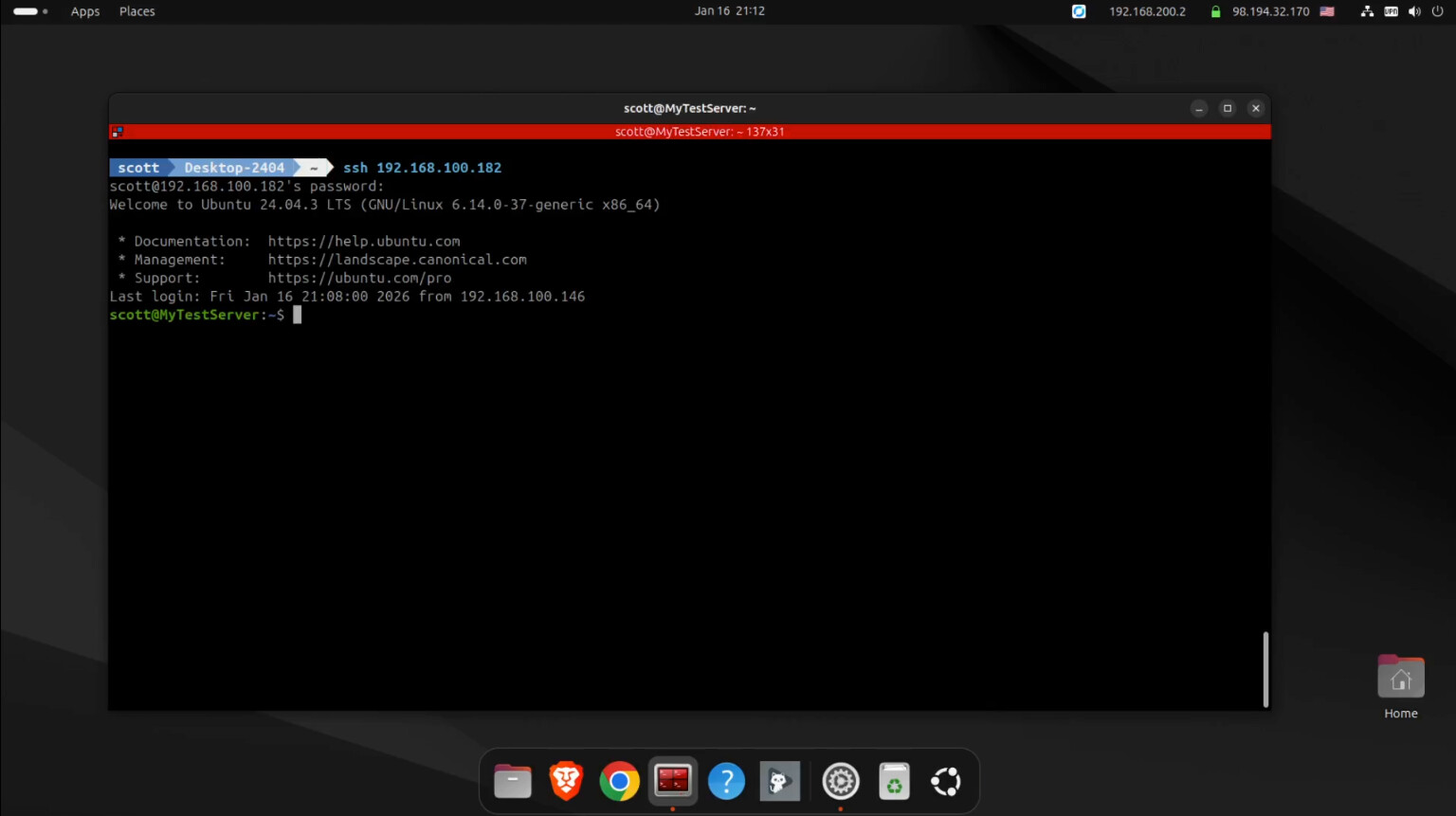
Keep in mind as I am ssh-ed into 192.168.100.182 in the terminal above, that system might be able to reach other systems that are unintended. That is called transitive access and it might be undesirable. You would need policies for the 192.168.100.182 system rather than for the VPN since the user is already on the network. Yes, security can be convoluted.
So, to prevent transitive access you might need to have policies that prevent systems on 192.168.100.0/24 from accessing your other vlans to limit transitive access concerns.
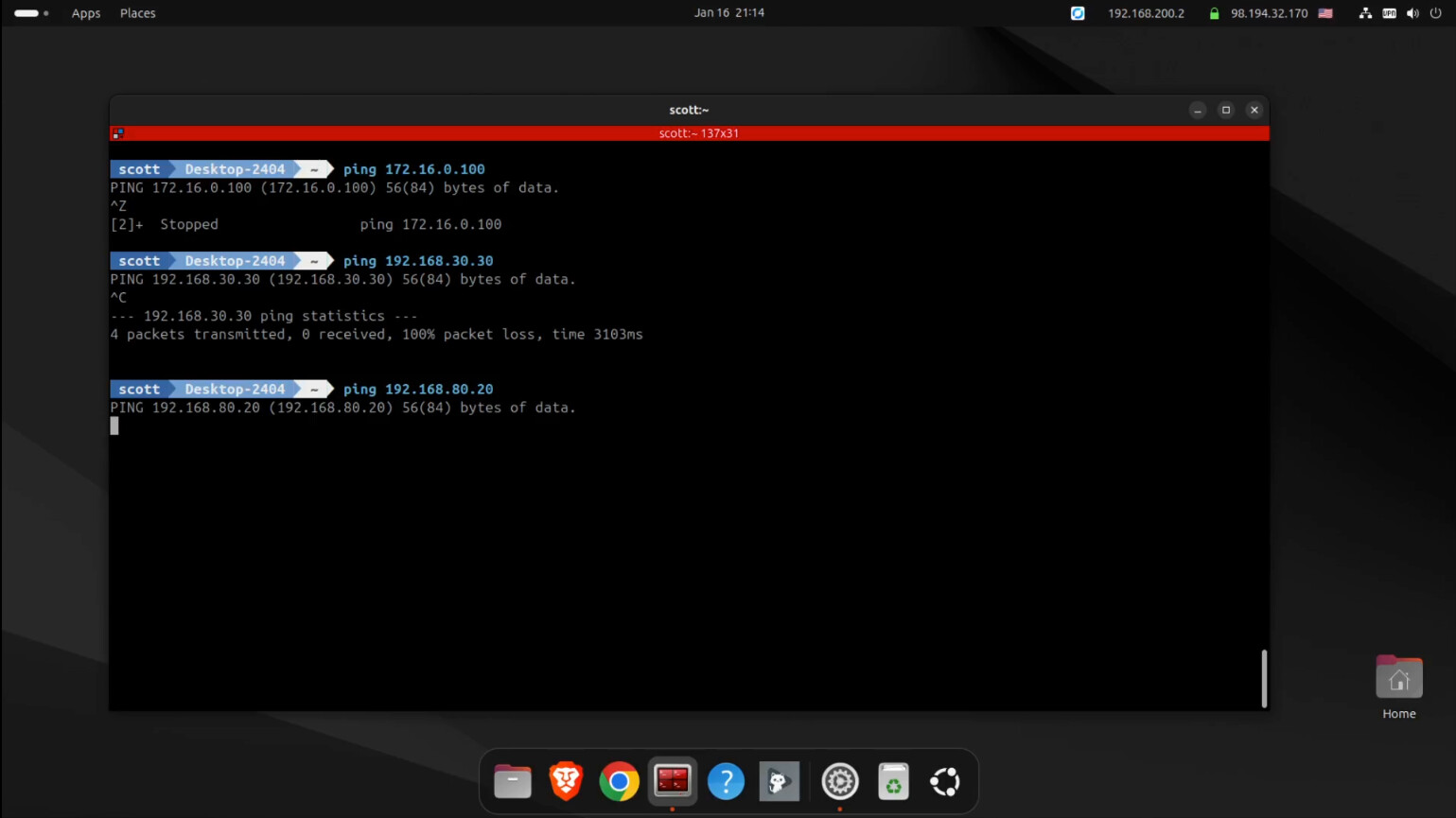
My firewall policies are correctly blocking access to the other VLANs.
Inbound VPN servers provide a very powerful capability for accessing systems at home when you are remote. You may want to limit which systems can be accessed by other users to whom you have granted VPN access.