Link aggregation allows combining multiple network interfaces into one. In this tutorial we learn how to link aggregate the bridge0 device introduced in “Incus Containers Step by Step”.
Link Aggregation Control Protocol (LACP) allows combining multiple Ethernet ports together to act as one for more bandwidth, redundancy and resilience. LACP has also been referred to by different software vendors as bonding, port-channel or EtherChannel, but these all refer to the IEEE 802.3ad standard.
The use of LACP provides for better performance and higher availability particularly for severs. So, in this tutorial I show how to configure LACP and the specific use case is for an Incus server.
LACP requires that you have a managed switch that supports link aggregation. For the purposes of this tutorial, I show a configuration of two ports aggregated on a Ubiquiti Unifi switch.
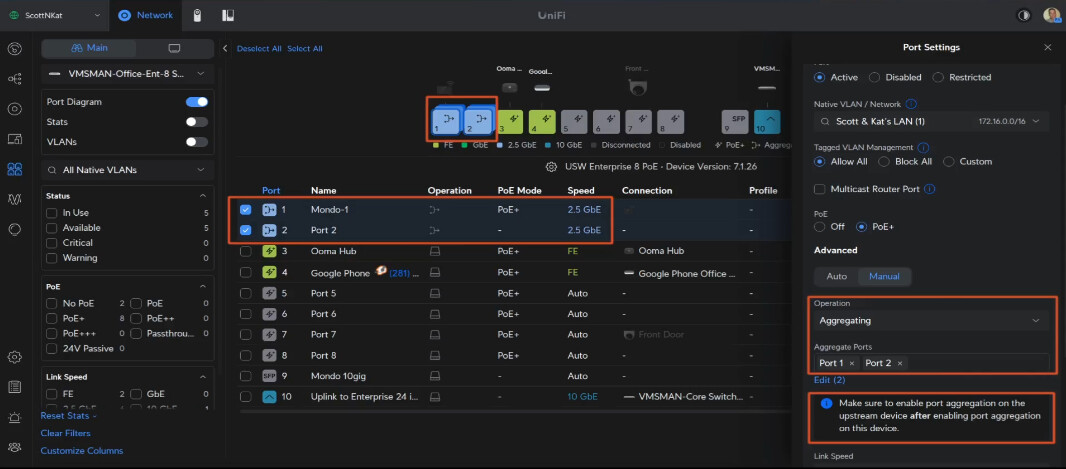
I have three servers that have two ports each that are aggregated in my network configuration. This has served me well for both increased bandwidth and for fail-over. I have had up to four ports aggregated for a single server in the past.
In my tutorial “Incus Containers Step by Step” we configured a software switch by the name of bridge0. This time we are going to expand on that concept by having bridge0 communicate with an aggregated port group rather than just a single network interface.
Note: Some network switches have multiple protocols to configure “bonded” ports. For the purpose of this tutorial, we will be using the IEEE 802.3ad standard and so that is how your aggregated ports should be configured on your switch.
In the video, I have devices enp5s0 and enp6s0 and each is initially configured to get its own address from the DHCP server on my LAN.
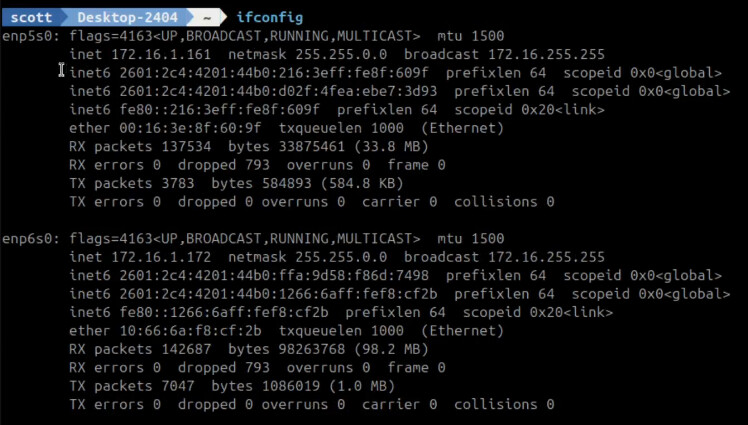
Since I previously configured the aggregated port group on the switch, I now need to configure the network devices on the server to use LACP as well.
Move over to the netplan folder:
cd /etc/netplan
My netplan file is as follows. The name is not important. The name of your file may differ.

I am editing my netplan file (change the name to match your netplan file):
sudo nano 10-lxc-yaml
Once you enter the nano editor, move to the beginning of the file and CTRL ^ marks your current location. Do a CTRL End to select everything to the end of the file and CTRL K will delete everything. Then paste the following code into the editor:
network:
  version: 2
  renderer: networkd

  ethernets:
    enp5s0: {}
    enp6s0: {}

  bonds:
    bond0:
      interfaces:
      - enp5s0
      - enp6s0
      parameters:
        mode: "802.3ad"

  bridges:
    bridge0:
      addresses:
      - "172.16.1.161/24"
      nameservers:
        addresses:
        - 172.16.0.10
      dhcp4: false
      interfaces:
      - bond0
      routes:
      - to: "default"
        via: "172.16.0.1"
Change the enp5s0 & enp6s0 names to match your network device names from your ifconfig command. Change the 172.16.1.161/24 address above to be the fixed address that you want for your server. Change the 172.16.0.10 to be the address of the name server that you use on your network. Finally, change 172.16.0.1 to be the gateway address on your network which will be the address of your router (something like 192168.1.1).
After making these changes, CTRL O and enter to write the file out and CTRL X to exit the editor.
To apply the changes to your system:
sudo netplan apply
At this point, you should have both a bond0 device and a bridge0 device in addition to your physical network adapters we saw in the first ifconfig command. The only device which should have a TCP/IP address will be the bridge0 device and all network traffic is now configured to use bridge0 which uses bond0 for communication.
ifconfig
Note that the two physical devices no longer have TCP/IP addresses.
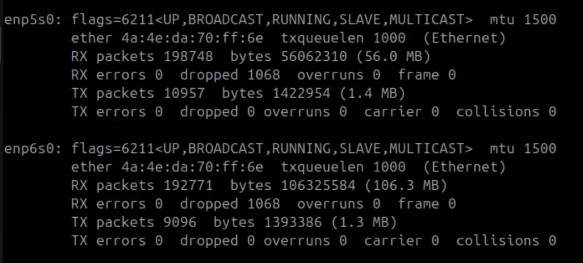
The new LACP group bond0 also has no address.

The static TCP/IP address is applied to bridge0.
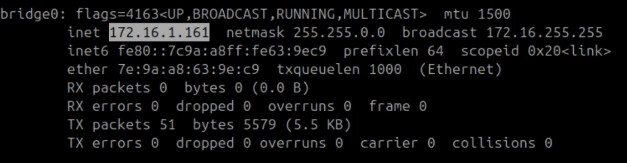
If this is an incus server, realize that the incus “bridgeprofile” created in “Incus Containers Step by Step” does not need to change at all because it simply points to bridge0.
Aggregated port groups provide more bandwidth and they also allow a network interface or cable to fail and the system can still be online as long as the port group has a least one working network adapter.