ScottiBYTE Incus Mobile Server is a self-hosted mobile administration gateway for Incus. It provides a secure web-based admin console and an Android client for viewing Incus servers, browsing instances, performing controlled instance operations, and opening an admin-only mobile shell.
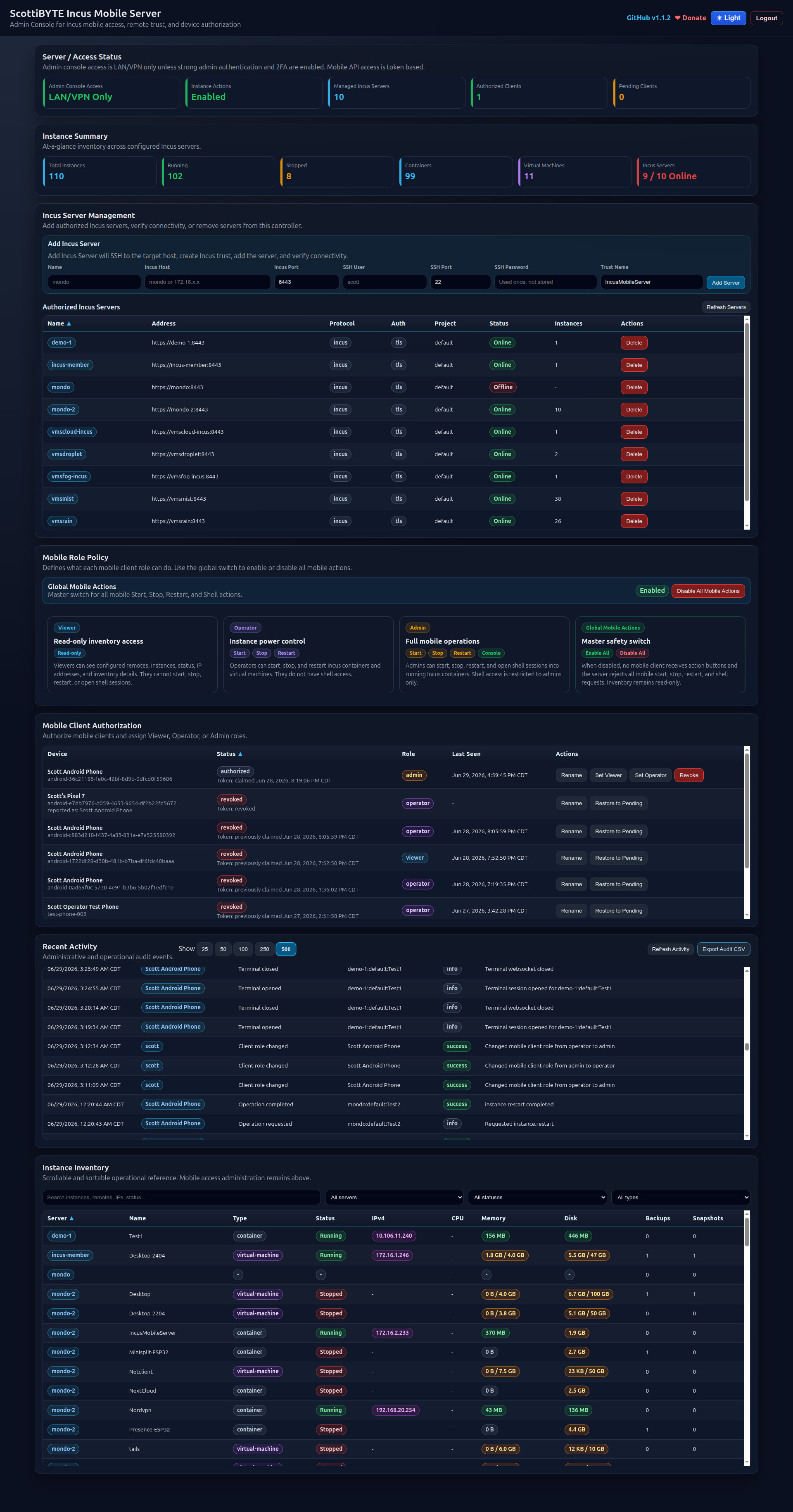
The Android client is authorized by the server and access is controlled by user roles called viewer, operator, and admin.
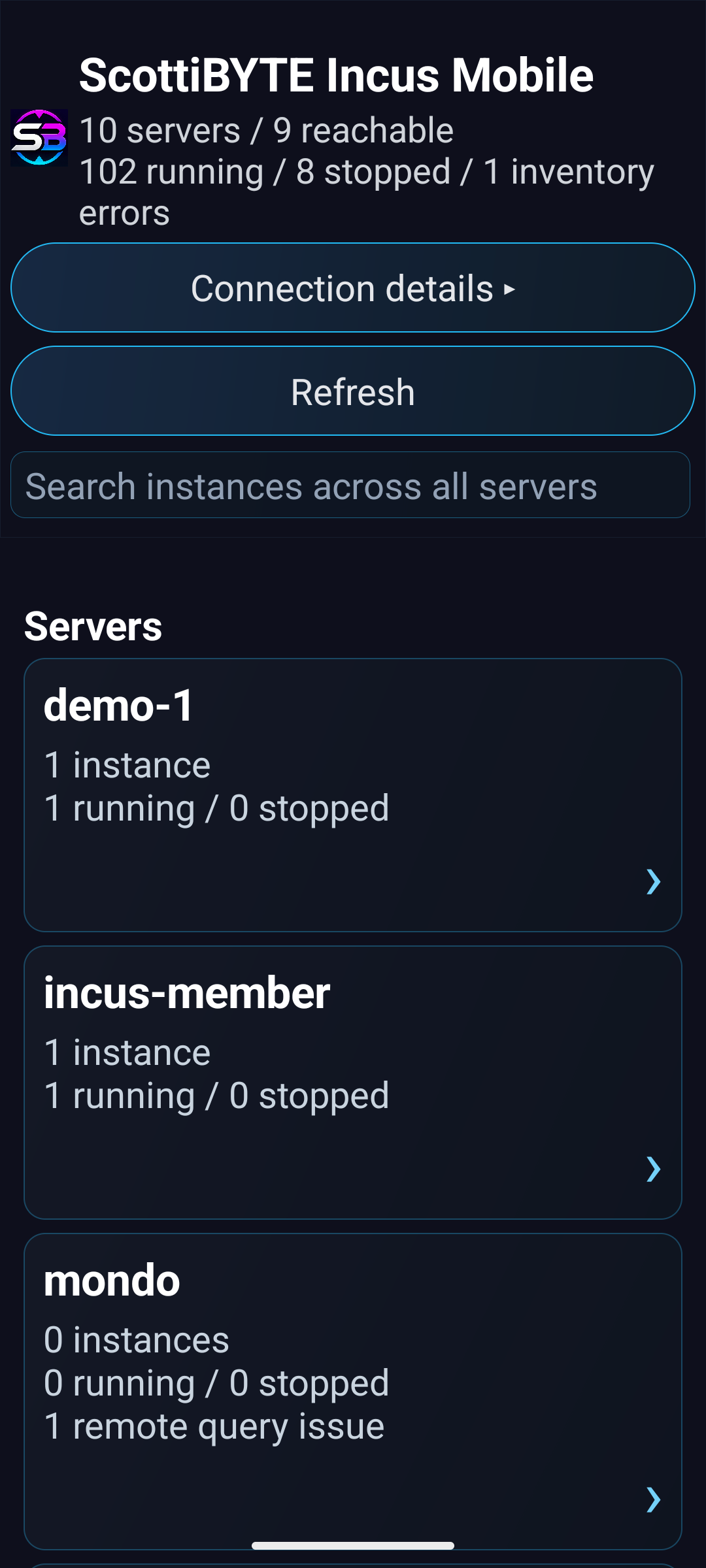
We are going to start by creating an Incus container that is bridged to the main LAN for the server application. My “bridgeprofile” is just a profile that bridges to a LAN address.
incus launch images:ubuntu/26.04 IncusMobileServer -p default -p bridgeprofile -c security.nesting=true -c boot.autostart=true
Move inside the container.
incus shell IncusMobileServer
Accept the updates.
apt update && apt upgrade -y
Install Dependencies.
apt install curl nano net-tools openssh-server -y
Install Docker from the script on the docker website.
curl https://get.docker.com | sh
Add a username.
adduser scott
Grant the user sudo and docker.
usermod -aG sudo,docker scott
Log into the new user account.
su - scott
Create a folder structure.
mkdir -p ~/scottibyte-incus-mobile-server/docker-data
Move into the app folder.
cd ~/scottibyte-incus-mobile-server
Edit a docker compose file.
nano compose.yml
Paste the following into the editor.
services:
  incus-mobile-server:
    image: scottibyte/incus-mobile-server:latest
    container_name: scottibyte-incus-mobile-server
    restart: unless-stopped

    ports:
      - "3088:3088"

    environment:
      APP_NAME: "ScottiBYTE Incus Mobile Server"
      PORT: "3088"
      DATA_DIR: "/app/data"
      HOME: "/app/data"
      INCUS_CONF: "/app/data/incus-client"
      APP_TIME_ZONE: "America/Chicago"

      # Set these to the UID/GID that should own the bind-mounted data directory.
      # On many Linux systems, the first normal user is 1000:1000.
      PUID: "1001"
      PGID: "1001"
      TRUST_PROXY: "true"
      ADMIN_ALLOWED_CIDRS: "127.0.0.1/32,10.0.0.0/8,172.16.0.0/12,192.168.0.0/16"
      MOBILE_ACTIONS_ENABLED: "true"
      MOBILE_TERMINAL_ENABLED: "true"
      MOBILE_TERMINAL_IDLE_TIMEOUT_MS: "900000"
      MOBILE_PROTECTED_INSTANCES: "IncusMobileServer"

    volumes:
      - ./docker-data:/app/data

    extra_hosts:
      - "vmsmist:172.16.1.50"
      - "vmsrain:172.16.1.51"
Change your Time Zone above and enter the names and addresses of your Incus servers in the extra_hosts section. Save the file with CTRL O and enter and CTRL X to exit the nano editor.
Start the application.
docker compose up -d

Check the status.

Find out the address of your container (yours will differ).
ifconfig
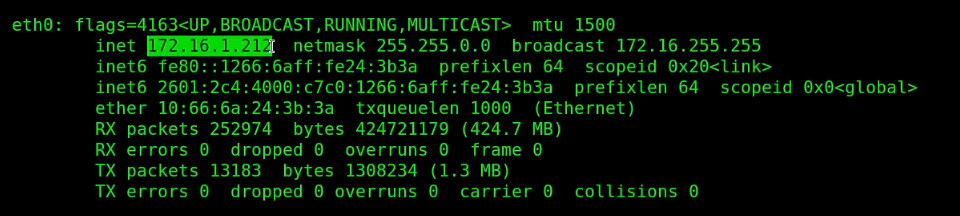
Enter that address into your web browser at port 3088 and you will see the initial Admin setup page.
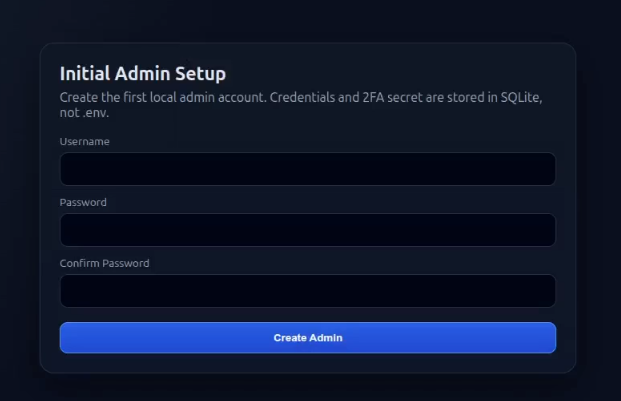
There is only one admin account and for security reasons two factor authentication with a time based one time password (TOTP) is a requirement. Once you enter your admin username and password settings, click “Create Admin” and you will be taken to a 2FA setup screen.
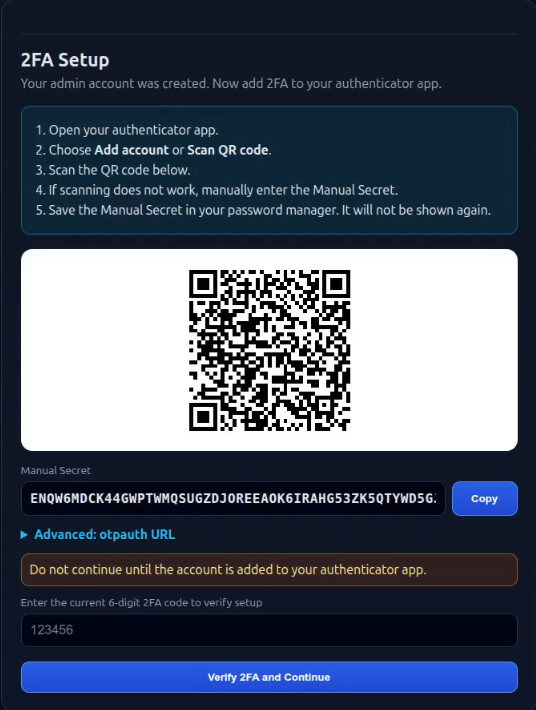
Copy the secret or scan the QR code for your favorite password manager or 2FA application. Once you get a current 6 digit key, enter it in the blank and click “Verify 2FA and Continue”.
Once the TOTP key is verified, the screen will appear as follows.
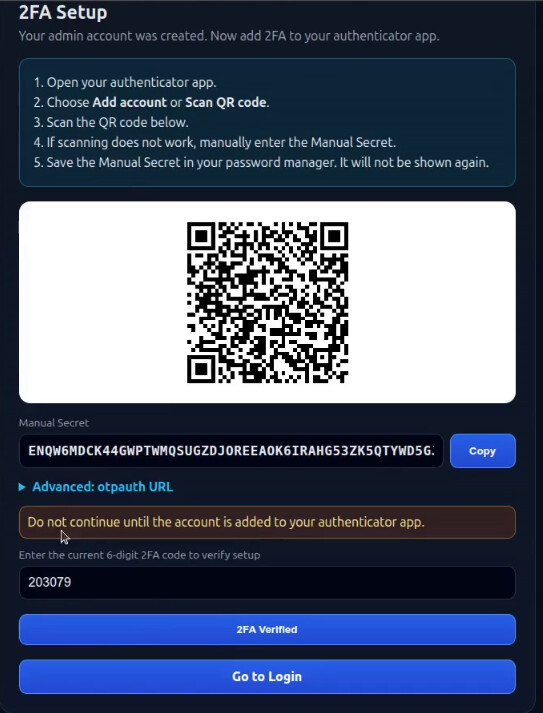
Click “Go to Login” and you will be able to provide your username, password and TOTP key and be logged in.
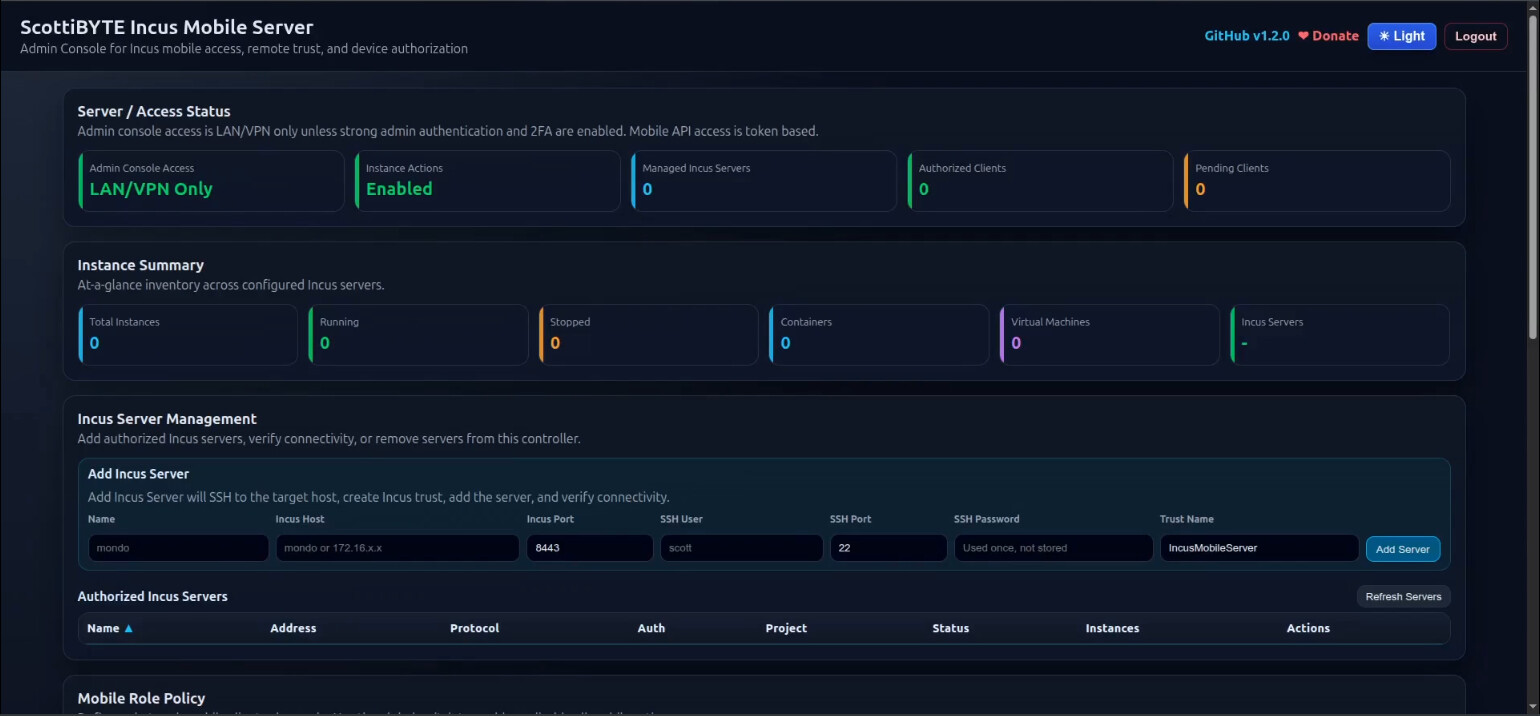
If you ever lose your username, password or 2FA configuration you should log into the incus container we used to install the application and enter:
scottibyte-incus-mobile-reset-admin
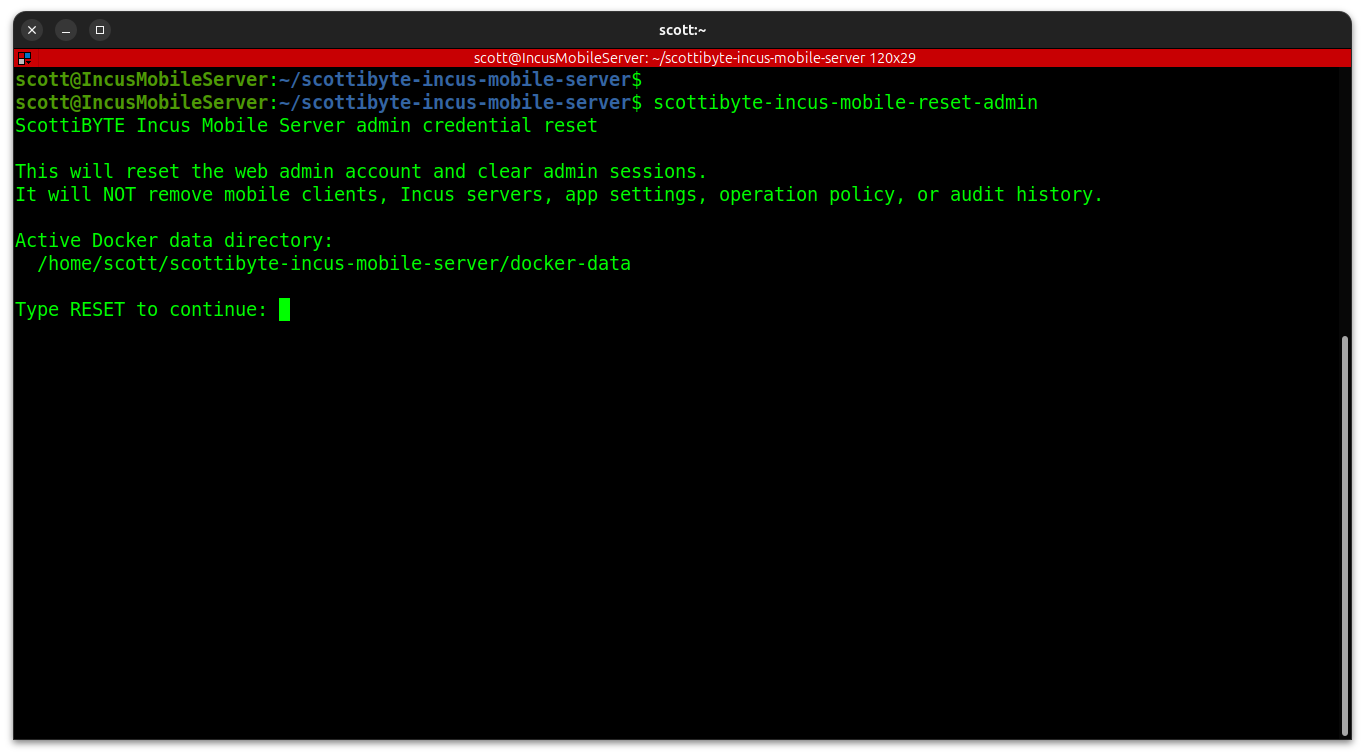
The reset will reset the account and you will go through the initial admin account setup again. Nothing will be lost in regards to anything configured on the server though.
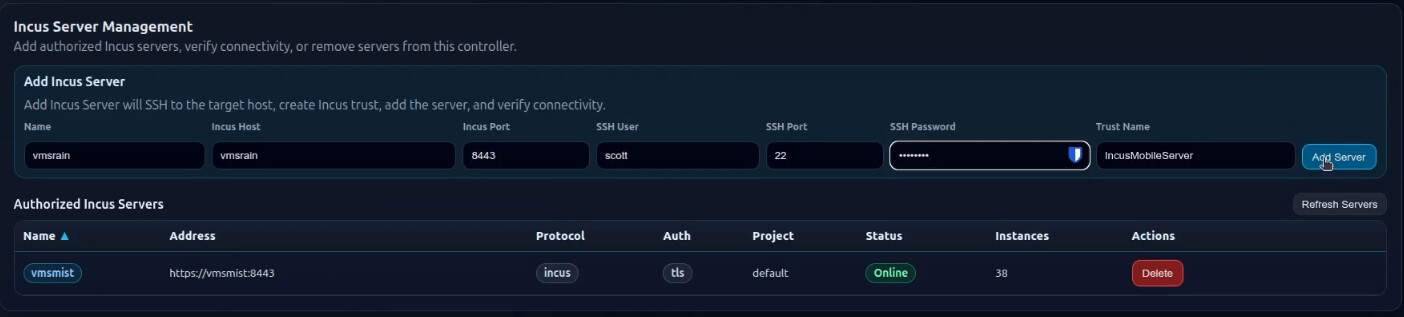
The first step that you will want to perform on the server after initial login is to enter your Incus server(s) that you configured in the docker compose.
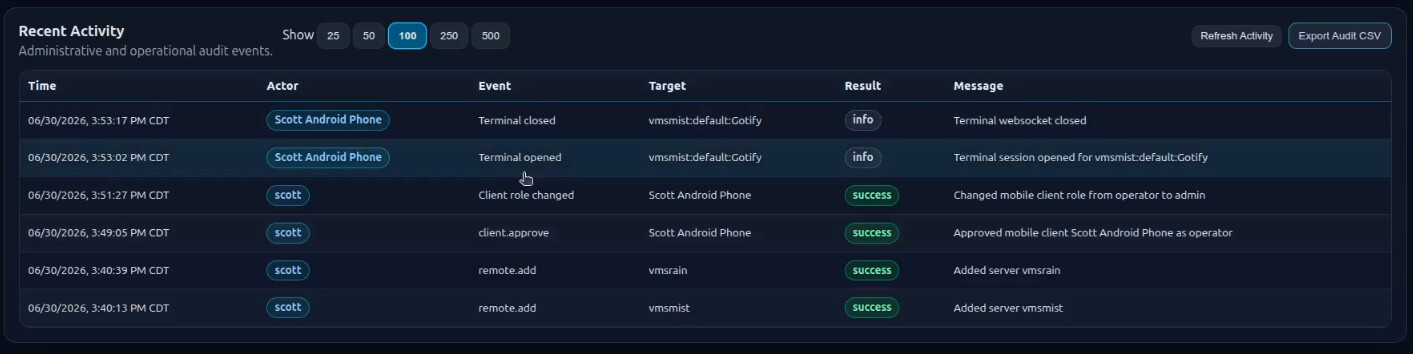
The recent activity log will log all operations on the server and on the Android clients.

Note that you can also export this log as a CSV at any time for audit purposes.
At this point we have no mobile clients configured.

On your Android phone, go into your web browser and go to this releases page. Scroll down to the assets and download the “.apk” program file. Make sure that your Android phone is set to install from unknown sources and then install the downloaded file.
On the phone, you will see this initial screen.
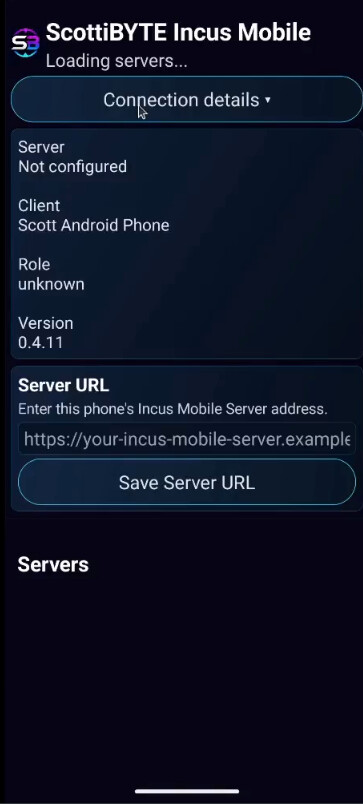
Put the address of your server into the Server URL field. If you configured a domain name in NginX Referse Proxy Manager, you can use it instead.
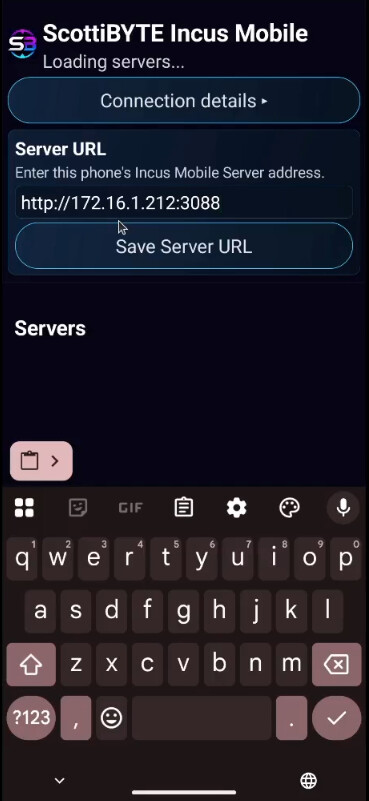
Then tap “Save Server URL” and if you entered your address correctly (don’t forget the port number) you should see the following which says “Pairing request sent. Waiting for Admin approval…”.
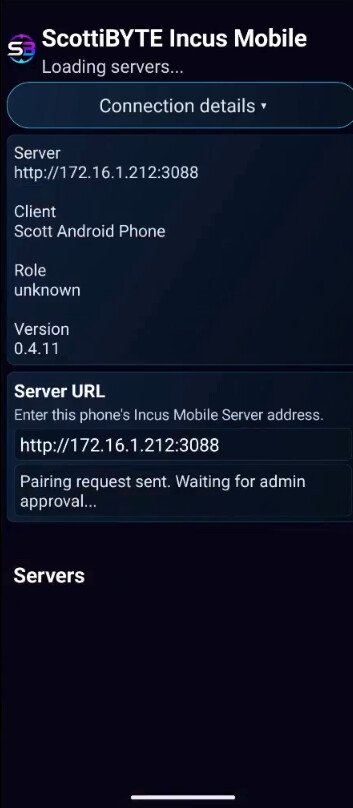
ScottiBYTE Incus Mobile server is secure because without a secure token granted, an Android user cannot access your Incus servers. No credentials are stored on the phone.
Back on the server, you will see that a “Mobile Client Authorization” is pending.

You can approve the request as an operator or a viewer. I clicked “Approve Operator”.

The token exchange handshake is very fast and the phone is already seeing the servers,
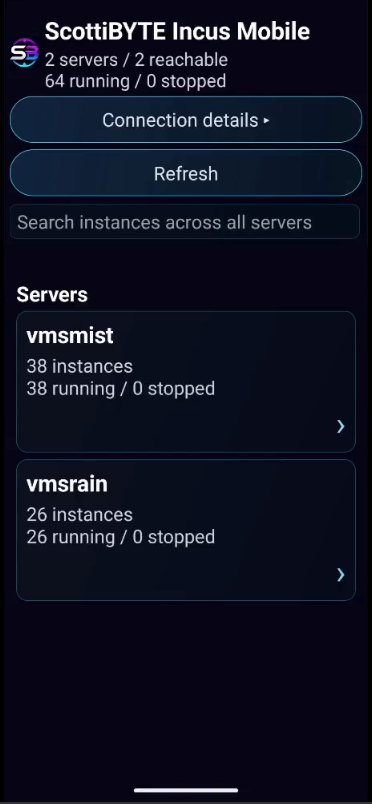
If I open the connection details, I can see that this client is an operator.
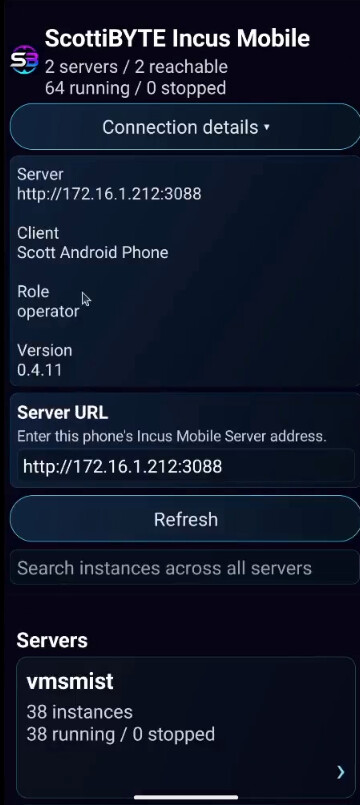
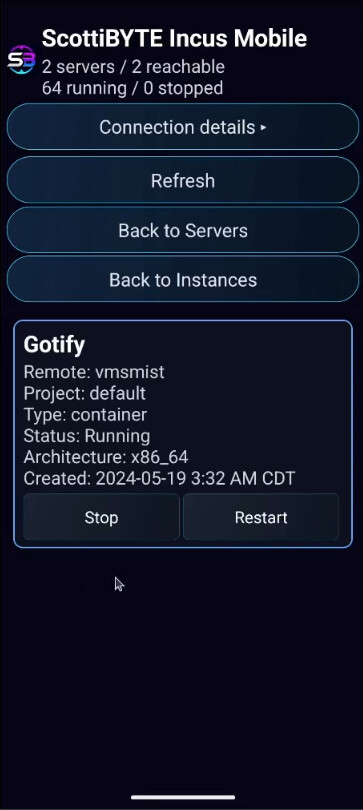
Recall that a mobile “operator” can stop, start, or restart a container, but they do not have shell access.
Back on the the server we can see that the token was claimed for the client.

A token can be revoked at any time which will instantly de-authorize the client.
In the tutorial, I upgraded “Scott Android Phone” to an admin.

Back on the phone, “Connection Details” will not show admin access initially.
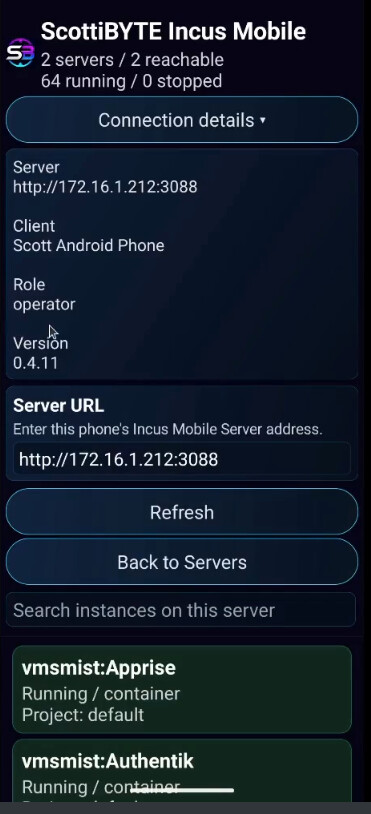
After I click the “Refresh” button, the role upgrades.
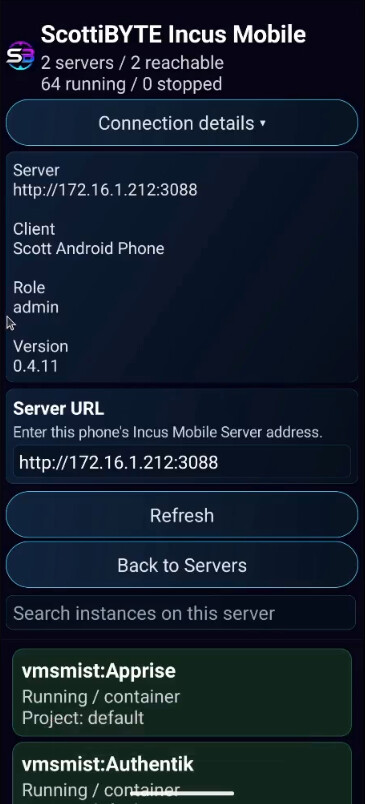
Now, containers have the shell option in virtue of the admin role.
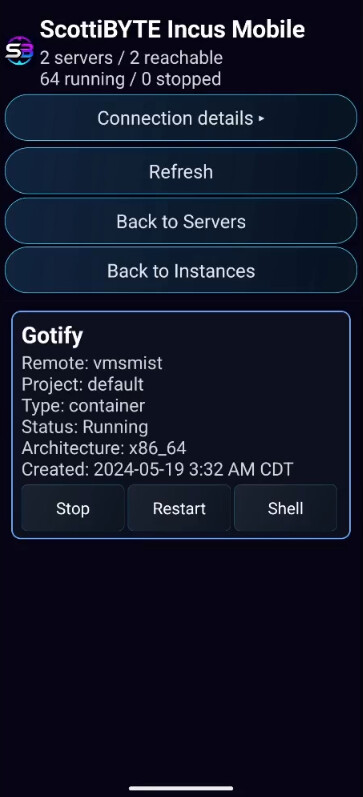
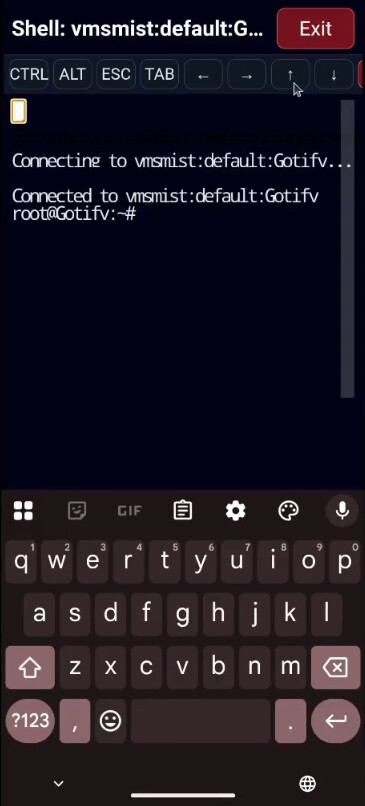
The shell command provides the option to enter simple commands in a pinch to correct problems remotely. It’s not meant to be a power terminal, but works in a pinch.
Back on the server, the “Recent Activity” log has been recording these events.
Hopefully “Incus Mobile Server” will be helpful to you. Consider donating to the channel if you found this or my other projects helpful.