FZF - Fuzzy Command Line Finder is a command line tool that is very helpful for use in the Home Lab.
Chances are that you have either used the up arrow to recall a previously entered command from the command prompt or that you have used the history command to see your command history.
history

You can also search the command history for a previously entered command based on a string.
history | grep incus
The CTRL R feature allows you to perform a reverse search where you can type in a string and it will find the last command you entered containing that string.

The Fuzzy Command Line Finder (FZF) can be installed with the following command:
sudo apt install fzf
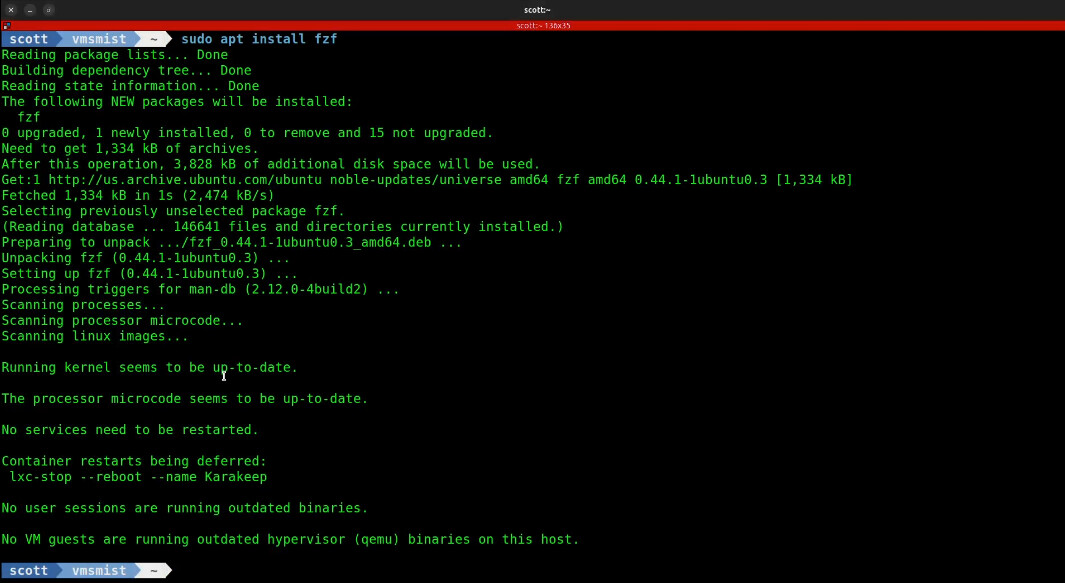
Let’s automatically define fzf to replace the default CTRL R command.
nano ~/.bashrc
Do a CTRL End to move to the bottom of the file in the nano editor.
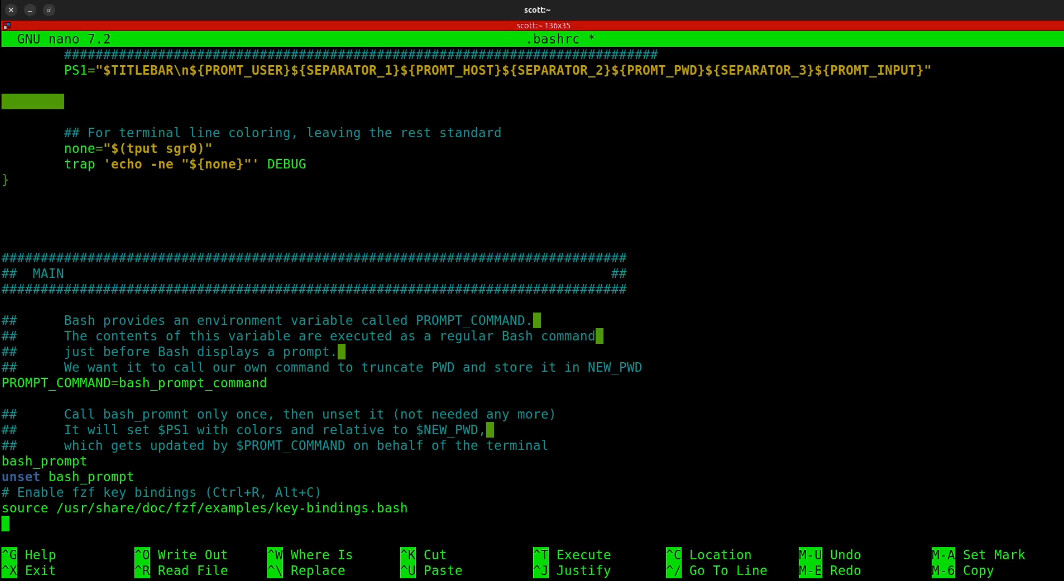
Your .bashrc will be different from mine. Add the following lines at the end of the file.
# Enable fzf key bindings (Ctrl+R, Alt+C)
source /usr/share/doc/fzf/examples/key-bindings.bash
Save the file with a CTRL O and enter and then exit the nano editor with a CTRL X.
To make this take effect immediately.
source ~/.bashrc
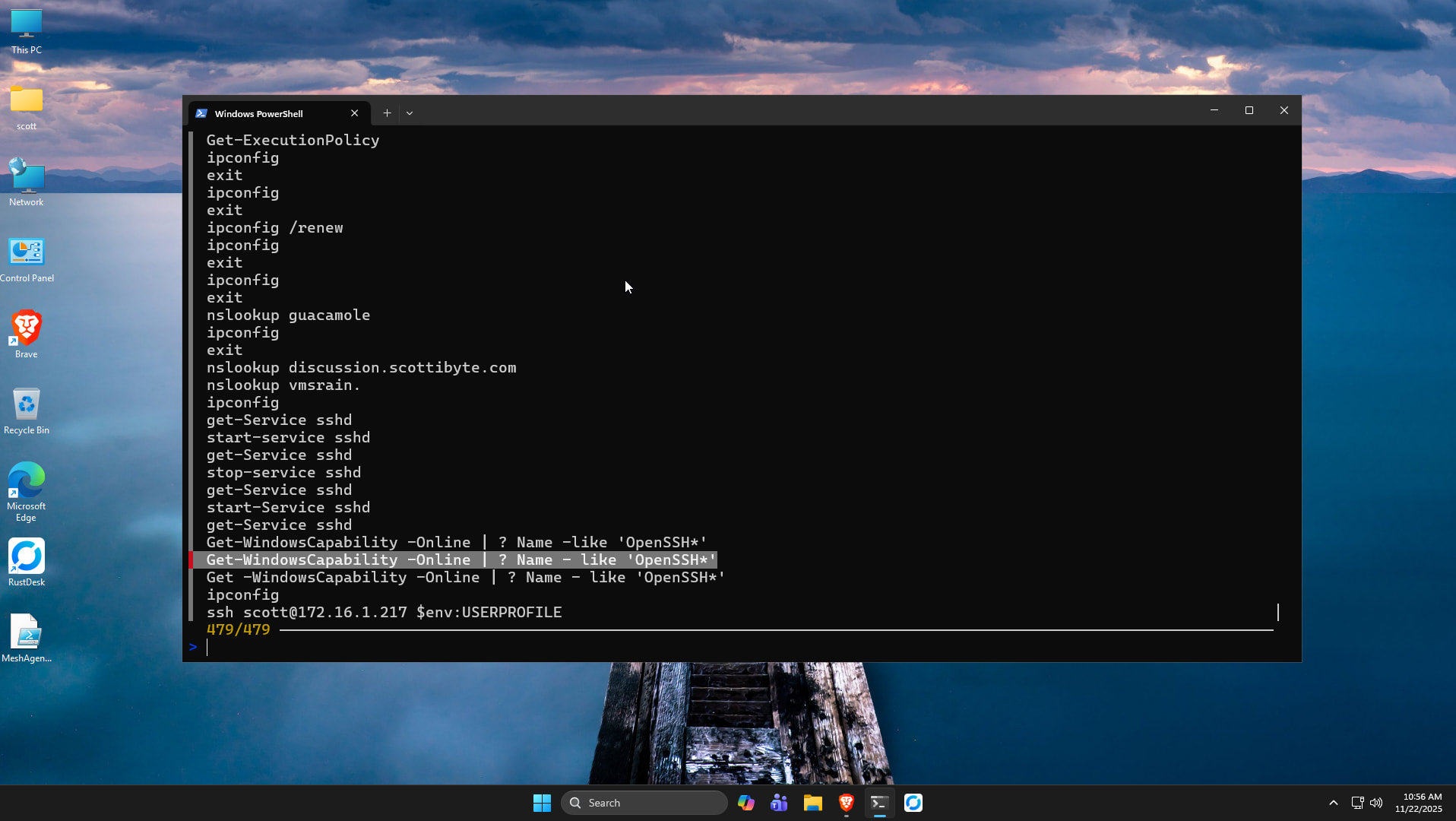
Use CTRL R to access FZF at any time.
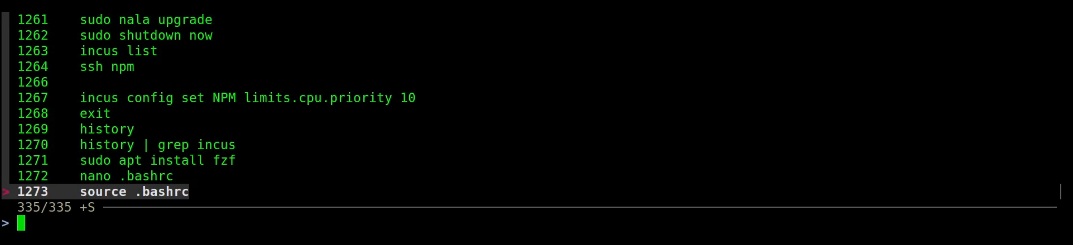
You can type in any search string at the prompt and FZF will find all commands that match. You can use the up and down arrows to scroll the results and the enter key exits FZF placing the selected command on your command line for editing or execution.
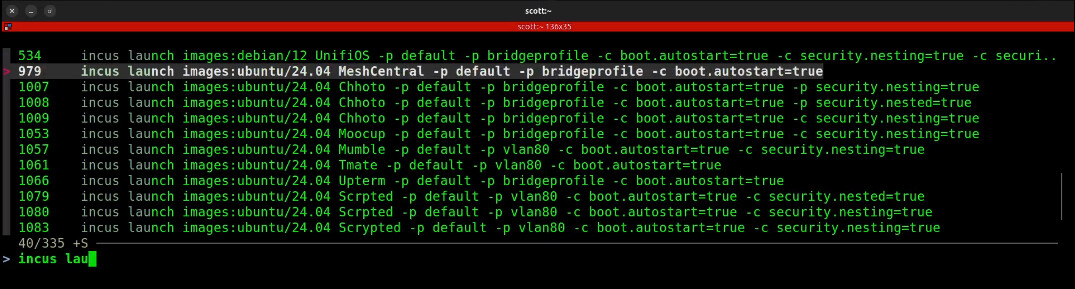
By pressing enter with the command line highlighted above:

As shown in the tutorial, you can enter CTRL U and the characters from the current cursor position to the beginning of the line will be deleted.
You can exit FZF at any time without entering a command with the ESC key.
FZF is available for Windows as well and you can install it in Windows with the winget command. Launch Windows Powershell.
winget install fzf
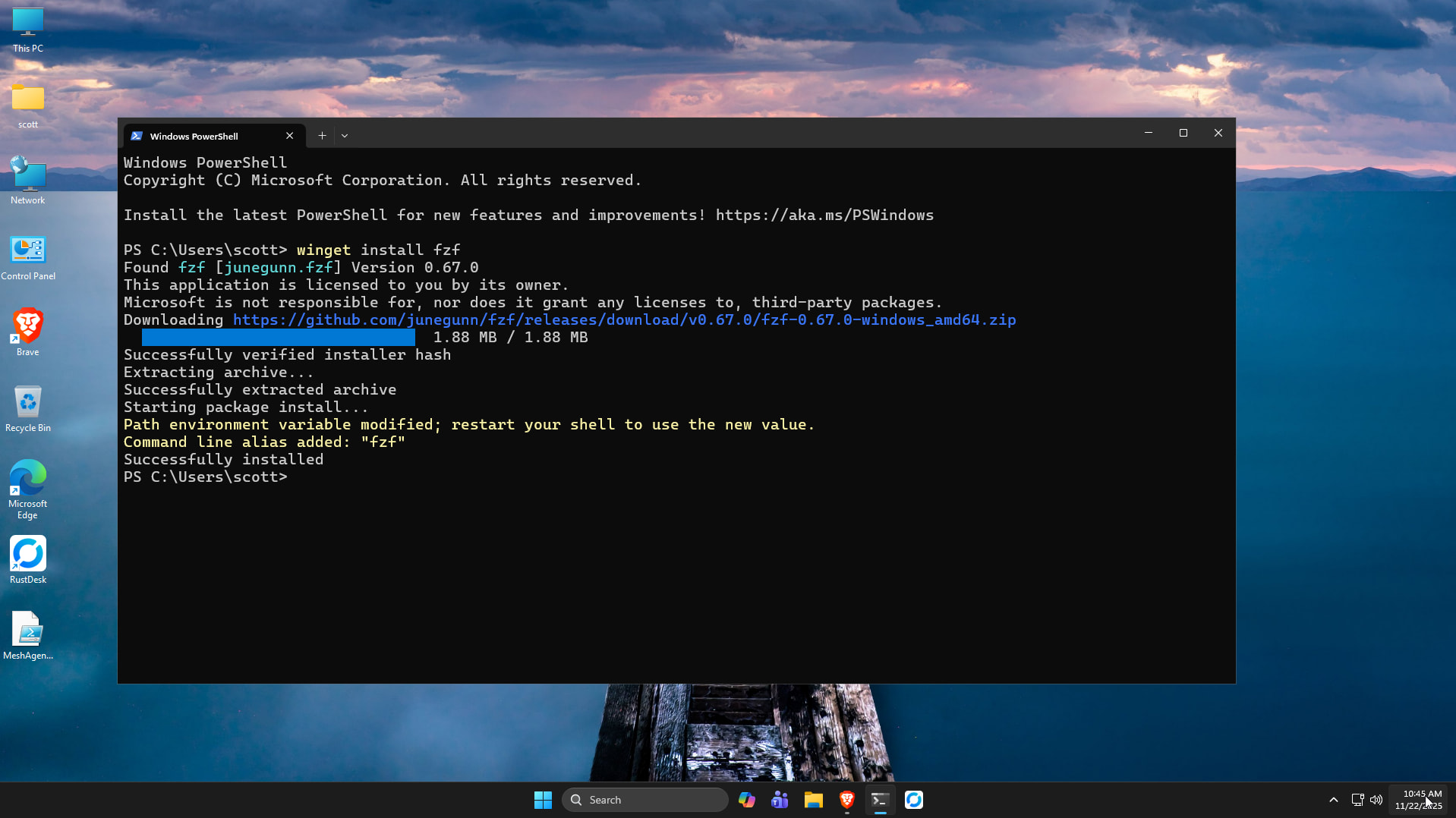
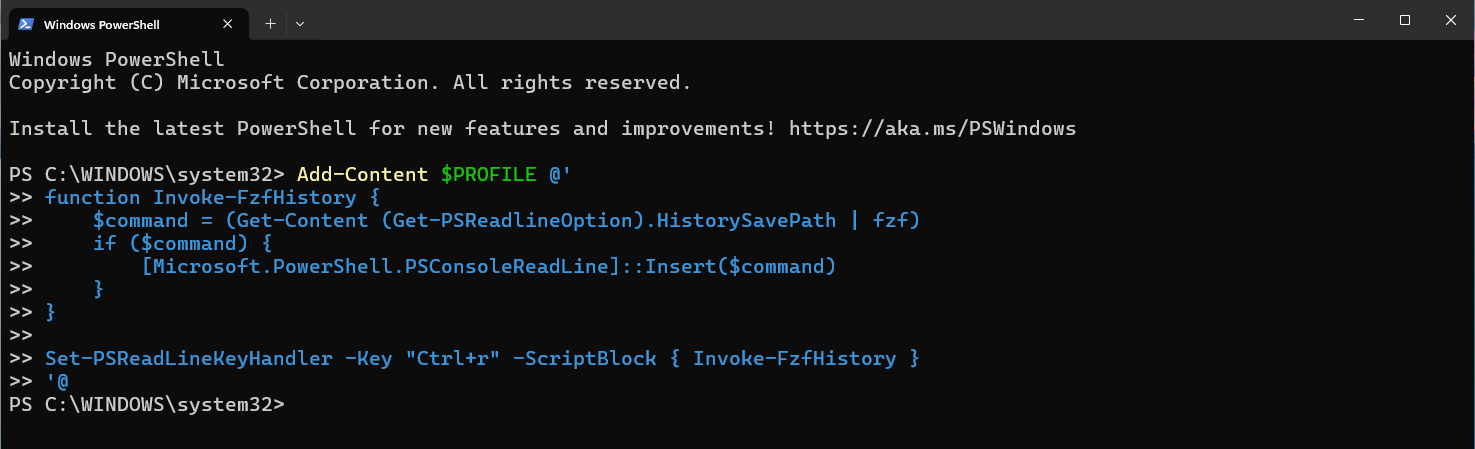
Exit your command Window and launch a new one to have access to fzf. Execute the following command to add the FZF key bindings.
Add-Content $PROFILE @'
function Invoke-FzfHistory {
    $command = (Get-Content (Get-PSReadlineOption).HistorySavePath | fzf)
    if ($command) {
        [Microsoft.PowerShell.PSConsoleReadLine]::Insert($command)
    }
}

Set-PSReadLineKeyHandler -Key "Ctrl+r" -ScriptBlock { Invoke-FzfHistory }
'@
Exit your Powershell and start a new one.
You can now access FZF with CTRL R just like in Linux.
FZF is a powerful command line command very helpful in the Home Lab.