ScottiBYTE MultiView Mobile is the Android client for phones & tablets as opposed to MultiView TV which is the FireTV & Android TV viewer equivalent that I originally released. This program also requires the MultiView Server covered in my tutorial “Multiview: TV Camera Viewing System”.
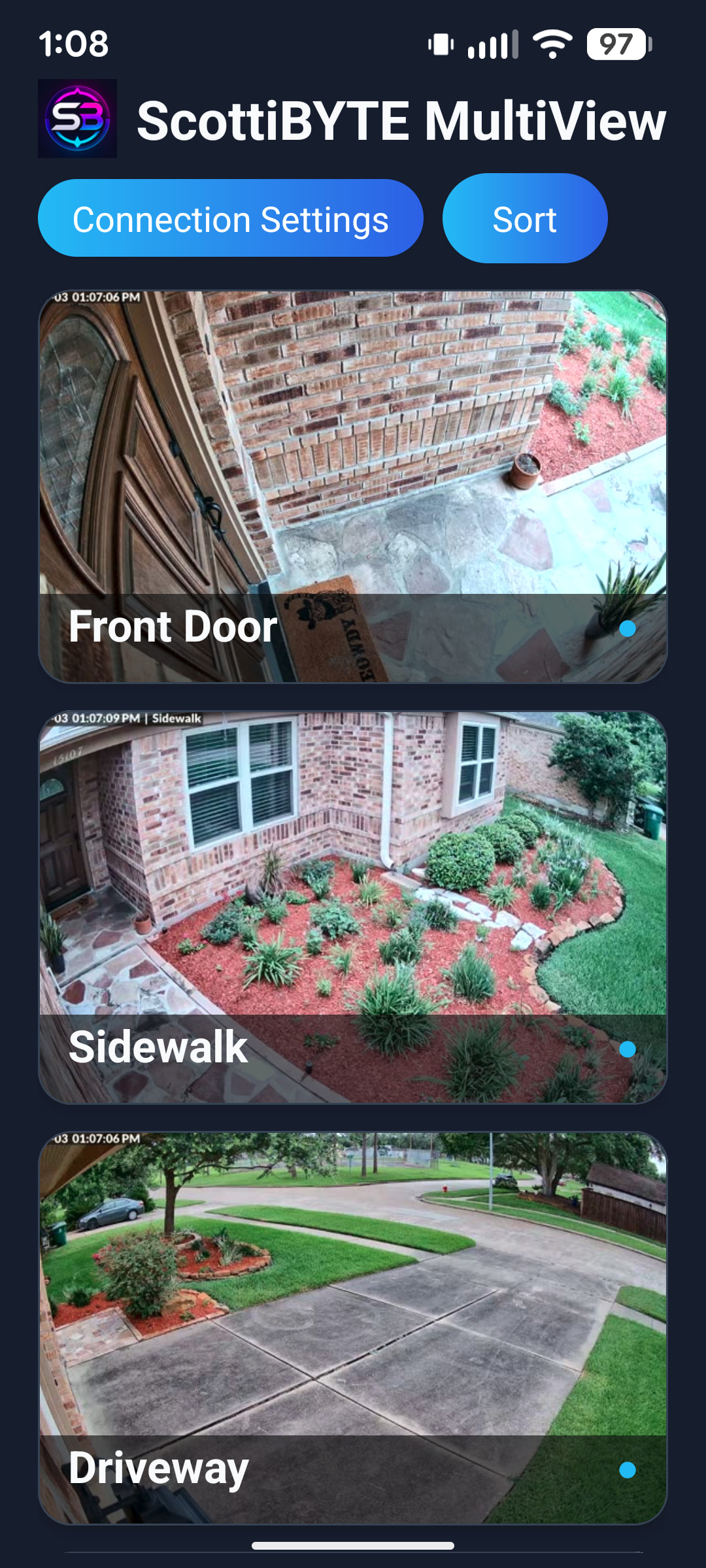
ScottiBYTE MultiView Mobile and a new release of the MultiView server provide a means to view live streaming from your cameras on your Android phones and tablets whereas the MultiviewTV Android application presented in the server video was specifically for TVs.
We are going to assume that you installed the server. If not, go back and watch that tutorial and install a MultiView Server. We will make a couple changes to the server to support viewing from anywhere which was not configured for the TV app which was likely local to your network.
In the previous video I said that you “could” create a subdomain proxy, but it was not necessary. The reasoning is because your MultiView server and your MultiView TV application were on your same home network.
With the introduction of ScottiBYTE MultiView Mobile, it’s likely that you will want to view your cameras when you are outside your home network and this can actually work for both the TV and the phone application with what follows below.
To achieve this “View from anywhere” capability, here’s a diagram to explain the data flow.
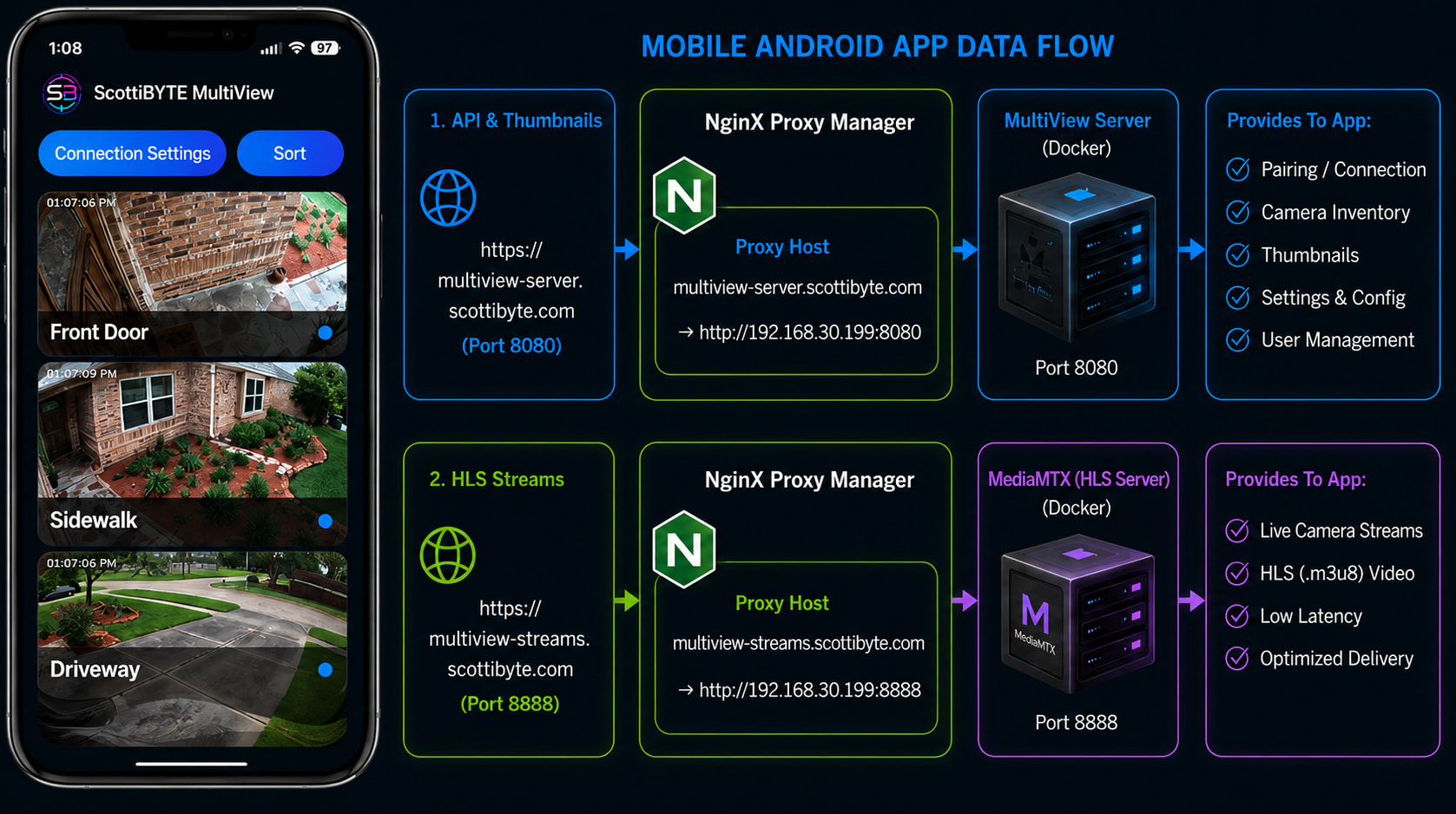
In my case, I created two subdomain entries for the ScottiBYTE MultiView Server at my DNS provider on my domain.
Next, l logged into my MultiView Server container.
incus shell MultiviewServer
su - scott
Move into the app folder.
cd multiview-server
Edit your .env file.
nano .env
From the initial installation, you would have the IP address of your server and the public URL and the HLS base would look like this:
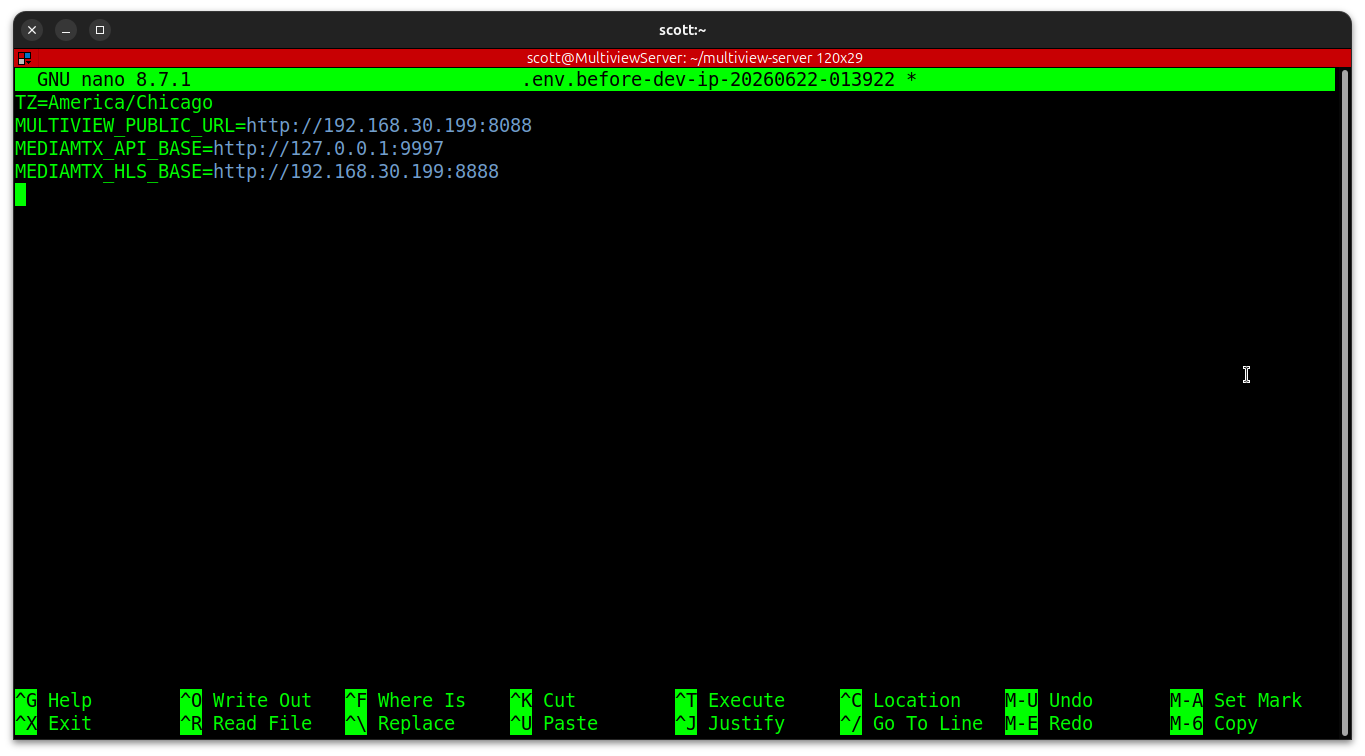
Change it to use your new domain names (yours will be what you chose) and your domain is not scottibyte.com!
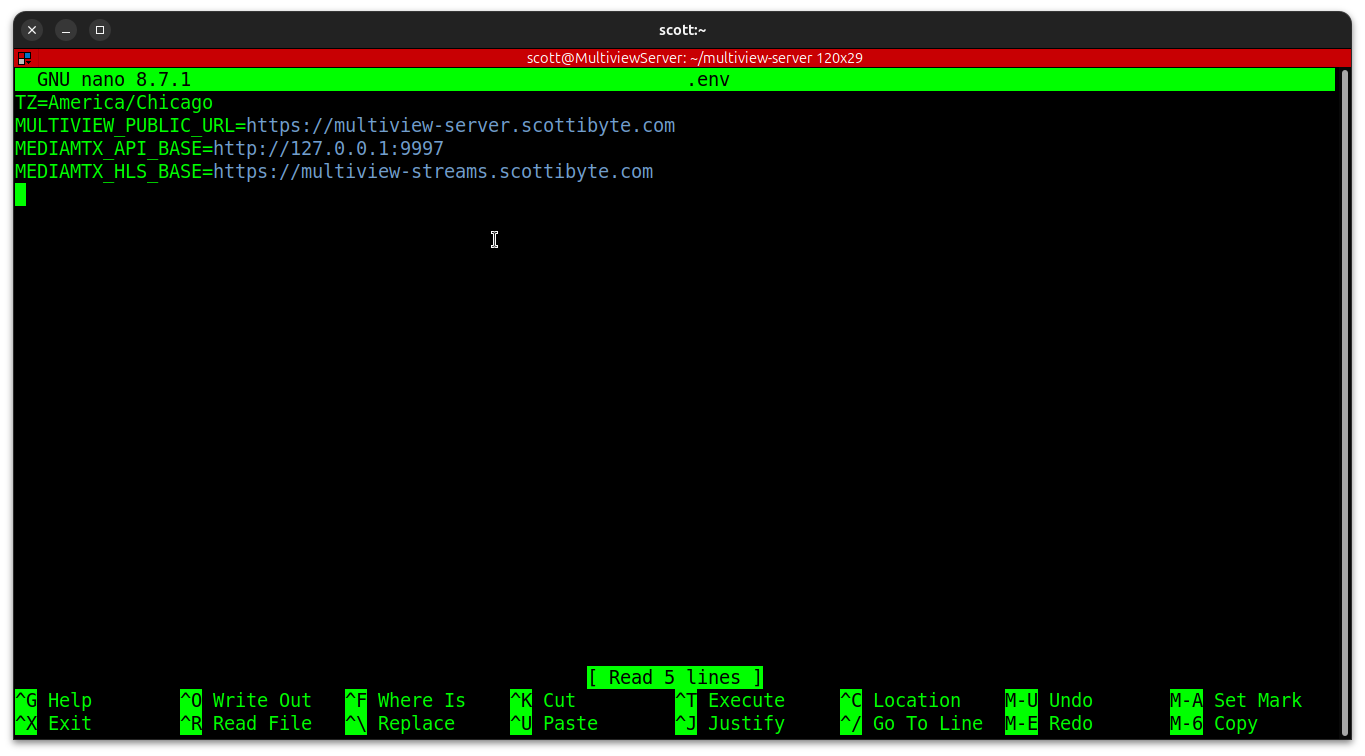
Save the file after your edits with CTRL O and enter and then CTRL X to exit the nano editor.
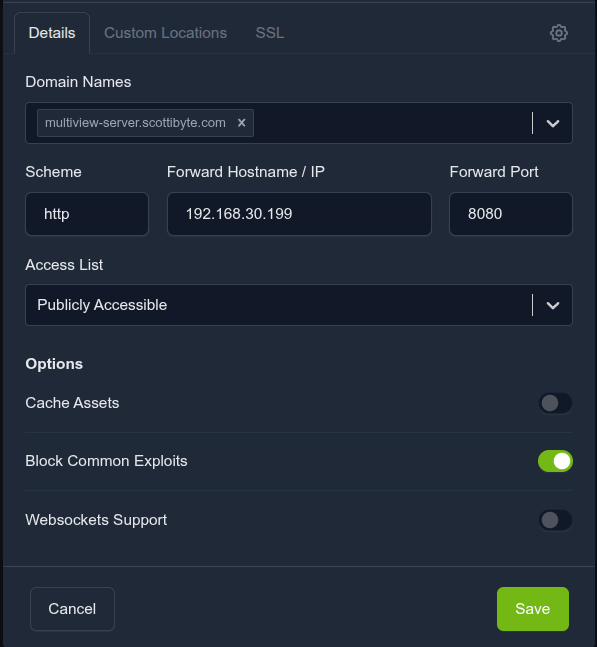
Then you will want to create an Nginx Proxy Manager proxy host using the public URL to port 8080 as follows:
Then you will create a MediaMTX HLS Base Proxy host in Nginx Proxy Manager to port 8888.
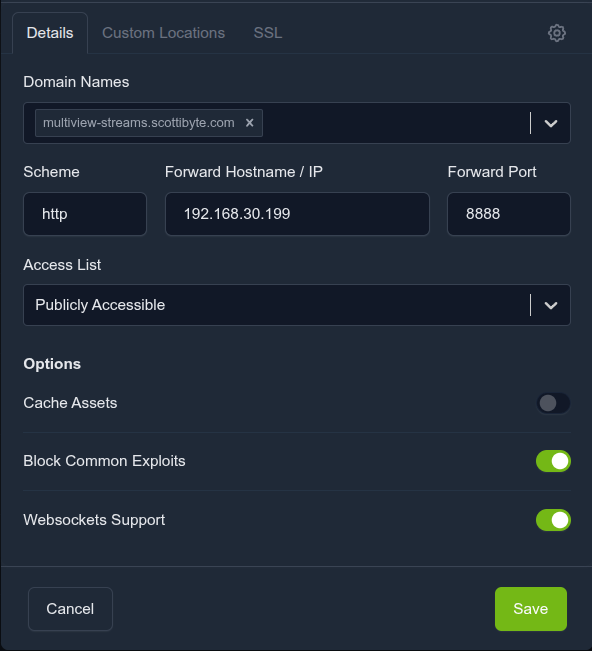
Make sure that you went to the SSL tab on both proxy definitions and requested an SSL certificate. Finally, at the Multiview Server prompt where you edited the .env file, pull the latest version of the server and restart.
docker compose pull
docker compose up -d
Now, on your Android phone web browser, download the ScottiBYTE MultiView Mobile app from here.
Be sure that your phone has “Install from unknown sources” enabled. Tap the file you just downloaded to install the app to your phone.
Launch the ScottiBYTE MultiView Mobile app.
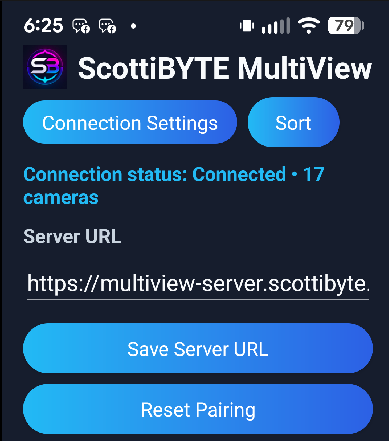
Set your Public URL in the Server URL field to YOUR subdomain name and click SAVE.
At that point your Multiview Server will see a pairing request.
Approve the request on the server and your phone will see your cameras immediately.