# Incus Dashboard in Docker
**URL:** https://discussion.scottibyte.com/t/incus-dashboard-in-docker/1497
**Category:** Uncategorized
**Created:** [May 5, 2026, 10:19pm UTC](https://discussion.scottibyte.com/t/incus-dashboard-in-docker/1497 "2026-05-05T22:19:39Z")
**Posts on this page:** 3
**Page:** 1
### Author:  [@scott](https://discussion.scottibyte.com/u/scott)
#### Post date: [May 5, 2026, 10:19pm UTC](https://discussion.scottibyte.com/t/incus-dashboard-in-docker/1497/1 "2026-05-05T22:19:39Z")
This is a re-release of my Incus Dashboard application which I initially releasd in late March. This time I made it easier to deploy by making it a Docker application.
If you are confident in Docker, you can just head over to my [Incus Dashboard](https://hub.docker.com/r/scottibyte/incus-dashboard) link on docker hub.
As a reminder, the Incus Dashboard provides read-only insight into your container status and resource utilization.
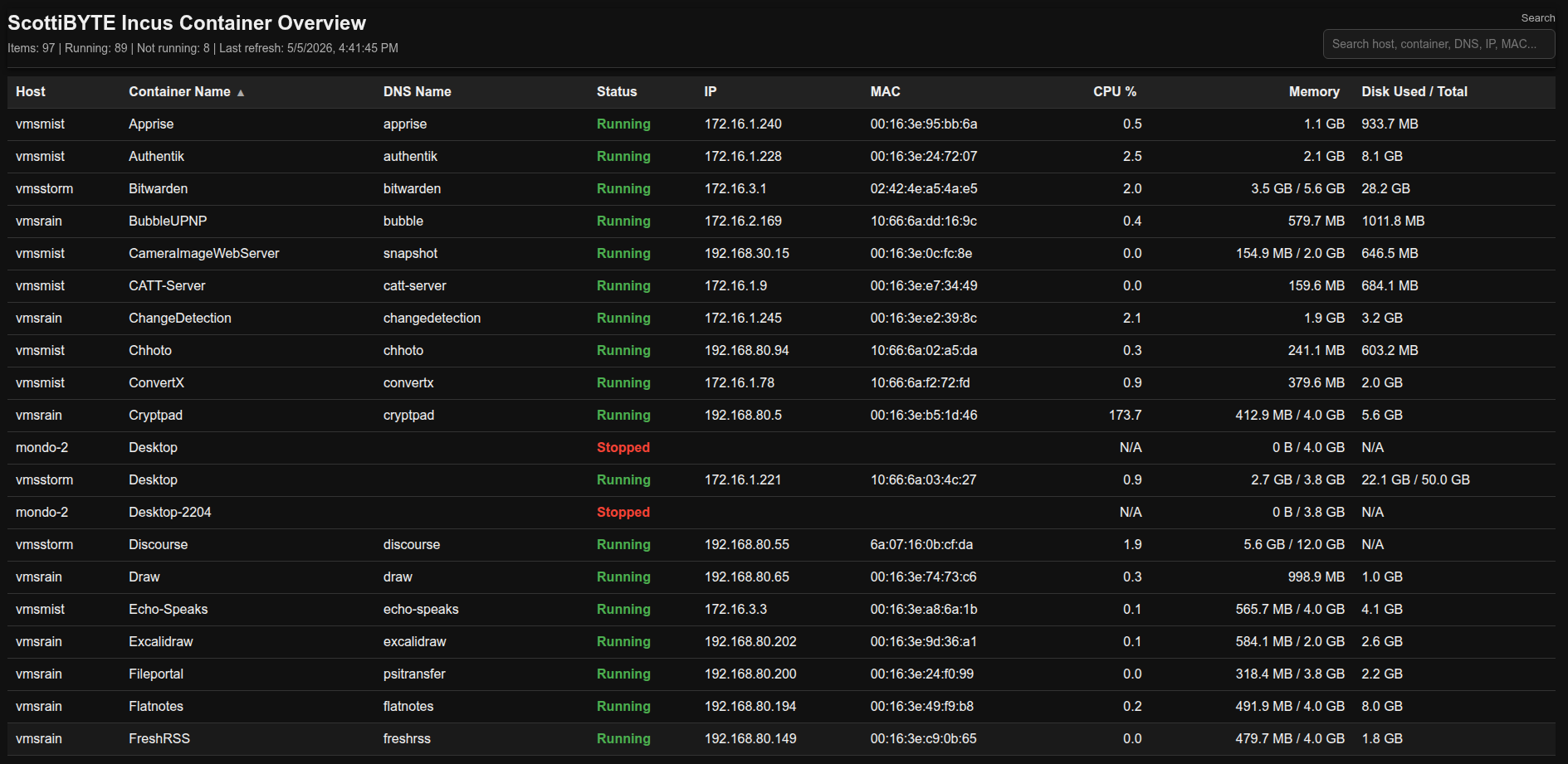
Let’s create an Incus container to host the application:
```auto
incus launch images:ubuntu/26.04 IncusDashboard -p default -p bridgeprofile -c boot.autostart=true -c security.nesting=true
```
Move inside the container.
```auto
incus shell IncusDashboard
```
Accept and apply the updates.
```auto
apt update && apt upgrade -y
```
Optionally convert the repository sources to the new format.
```auto
apt modernize-sources
```
Install some dependencies.
```auto
apt install nano net-tools curl openssh-server incus-client -y
```
Install Docker from the script on the docker website.
```auto
curl https://get.docker.com | sh
```
Add a user account and put it in the sudo and docker groups.
```auto
adduser scott
usermod -aG sudo,docker scott
```
Log into the new user account.
```auto
su - scott
```
Verify that the incus client command was installed and works.
```auto
incus remote list
```

We need to establish a trust with all of your incus servers that you want to manage. In the tutorial I added my incus server named “vmsmist”.
```auto
ssh vmsmist "incus config trust add Incus-Dashboard"
```
By default, incus containers do not resolve local DNS.

I have covered how to fix this before, but for simplicity you can edit your hosts file.
```auto
sudo nano /etc/hosts
```
Here’s how I added an entry for vmsmist.
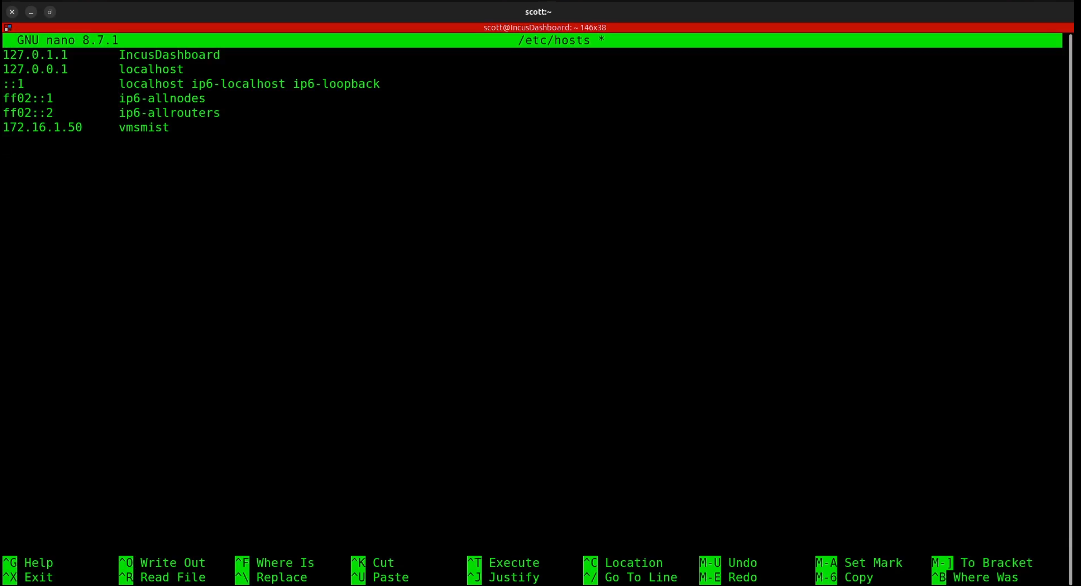
If you have more than one incus server, add them in the hosts file.
Now when you try the command again, it will succeed.
```auto
ssh vmsmist "incus config trust add Incus-Dashboard"
```

The next step is to add the trust using the provided token as shown in the video.
```auto
incus remote add vmsmist https://vmsmist:8443 --accept-certificate
```

To verify that your trust is correctly added:
```auto
incus remote list
```

If you want to Incus Dashboard to monitor more than one Incus server, simply add a trust for each by repeating the steps for any additional servers.
Create a folder for the application and move inside of it.
```auto
mkdir incus-dashboard
cd incus-dashboard
```
Create a docker compose file.
```auto
nano docker-compose.yml
```
Insert the following into the editor.
```auto
services:
incus-dashboard:
image: scottibyte/incus-dashboard:latest
container_name: incus-dashboard
restart: unless-stopped
ports:
- "80:80"
volumes:
- /home/scott/.config/incus:/root/.config/incus:ro
```
Be sure to change “scott” in the volume definition to the username that you created. Save the file with a CTRL O and enter and a CTRL X to exit the nano editor.
Start the application.
```auto
docker compose up -d
```
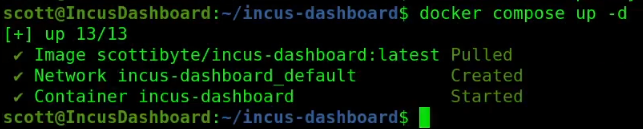
To check and see that the application is running.
```auto
docker ps
```

Find out the address of your eth0 device in the incus container.
```auto
ifconfig
```
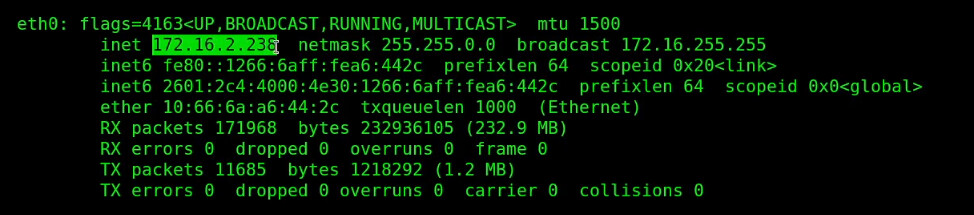
Your address will be different. Go to your web browser and type the address you just found.
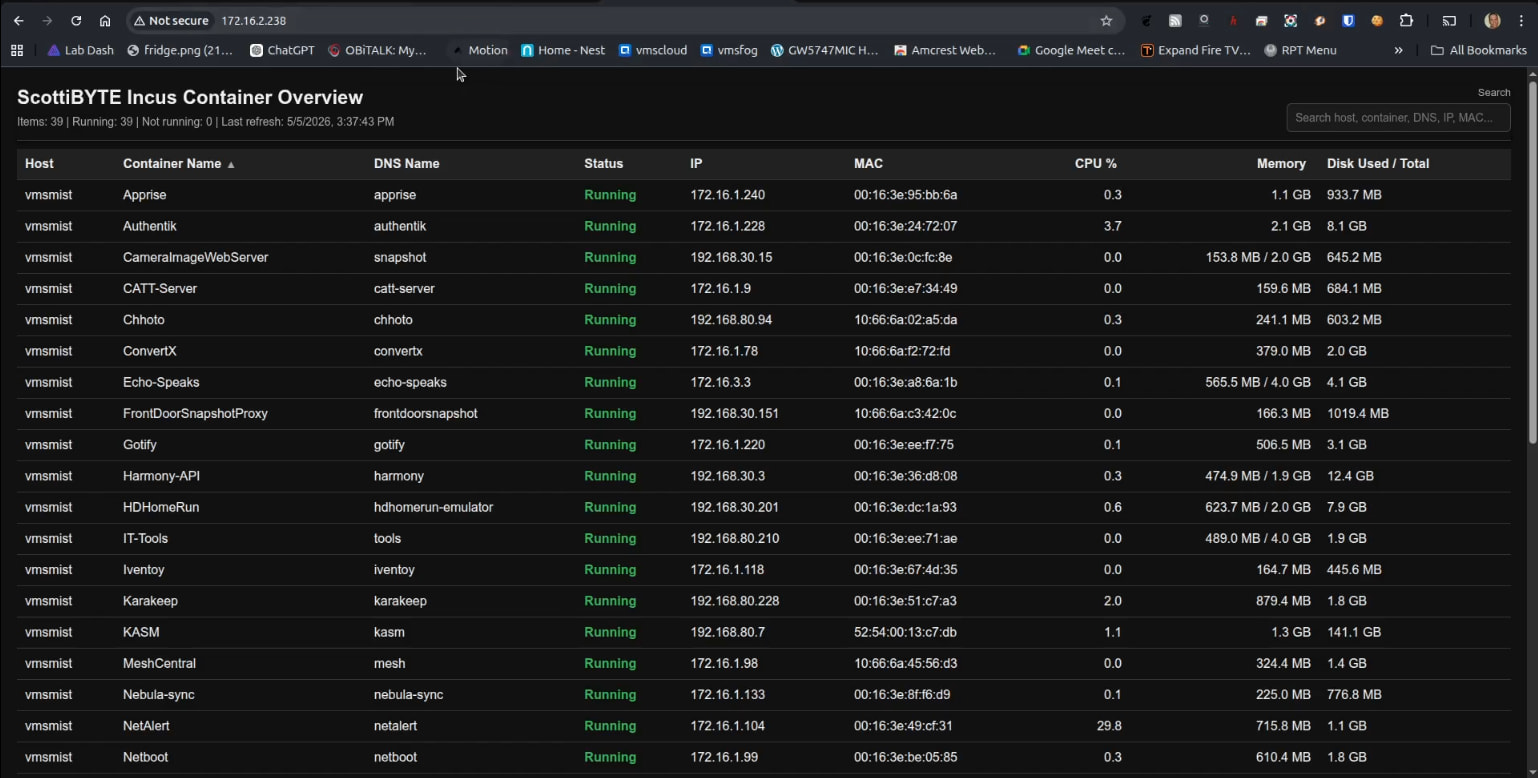
If you have more questions about this application, you can watch my previous tutorial.
---
### Author:  [@paul](https://discussion.scottibyte.com/u/paul)
#### Post date: [June 10, 2026, 1:27am UTC](https://discussion.scottibyte.com/t/incus-dashboard-in-docker/1497/2 "2026-06-10T01:27:22Z")
Hey Scott, you’ve been shipping some cool frontend stuff for the past 3 weeks or so. Could you share the prompt(s) you use to achieve that?
---
### Author:  [@scott](https://discussion.scottibyte.com/u/scott)
#### Post date: [June 10, 2026, 1:39am UTC](https://discussion.scottibyte.com/t/incus-dashboard-in-docker/1497/3 "2026-06-10T01:39:58Z")
Come to the chat. [https://chat.scottibyte.com](https://chat.scottibyte.com).