# Incus Custom Image Manager (IncusForge)
**URL:** https://discussion.scottibyte.com/t/incus-custom-image-manager-incusforge/1506
**Category:** Uncategorized
**Created:** [May 21, 2026, 3:08pm UTC](https://discussion.scottibyte.com/t/incus-custom-image-manager-incusforge/1506 "2026-05-21T15:08:37Z")
**Posts on this page:** 1
**Page:** 1
### Author:  [@scott](https://discussion.scottibyte.com/u/scott)
#### Post date: [May 21, 2026, 3:08pm UTC](https://discussion.scottibyte.com/t/incus-custom-image-manager-incusforge/1506/1 "2026-05-21T15:08:37Z")
This time around we learn about Incus custom images. Custom images can be created from any Incus container or container snapshot and then can be used as a starting point to create other containers. These images can be private to your Incus server or can be served in a public simplestreams repository.
Working with custom images can be complex from the command line. For that reason, I created the ScottiBYTE Incus Forge utility as a lightweight Home Lab focused web application for publishing, managing, and distributing custom Incus images through SimpleStreams repositories.
I previously created the [Incus Dashboard](https://www.youtube.com/watch?v=i8tczScw1FQ) which is a web based utility to provide a birds-eye view of all your container statistics across one or more Incus servers. I also created the [Incus Backup Utility](https://www.youtube.com/watch?v=OBmL8wnRN6U) as a web based method of creating and managing full backups of your containers which can be imported into other Incus servers. The Incus Backup utility fully implements the ability to import any previously backed up (exported) container to re-create it.
Custom images are templates created from existing containers using the “incus publish” command. In this video I review the command line options for publishing custom images and then I present my “ScottiBYTE Incus Forge” utility which makes managing custom images easy.
As a review, when you create an Incus container, you might do something like:
```auto
incus launch images:ubuntu/26.04 Test
```
The “images” in that command references the [linuxcontainers.org](http://linuxcontainers.org) simplestreams web repository that contains images for many distros and versions which you can use to create containers. That “images” repository is a “public” repository that anyone can access to access images and by default it is added to your incus server during installation of Incus.
Part of what we will learn is that you can create your own public simplestreams web server and store your own custom images in it that others may access to create containers. Normally, managing images in an out of a simpestreams server is not straight-forward. My incusforge utility makes that part easy. Configuring a simplestreams repository is completely optional and not required for incusforge if all you want to do is manage your own private custom images.
Repositories are defined in your “remote” listing. These include your Incus servers that you manage as well as any public simplestreams servers. By default a new Incus server installation includes the “local” repository and the “image” public simplestreams server at linux [containers.org](http://containers.org). You can list these on your Incus server with this command.
```auto
incus remote list
```
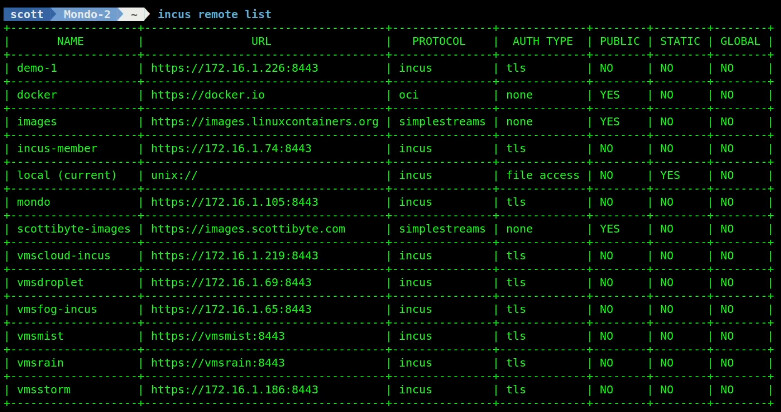
I have many incus servers defined in my remote list because I have established trusts on those servers in order to manage them from my desktop. I also have the docker OCI repository defined which I have covered in the past. The “scottibyte-images” is my public simplestreams server to which I can share images with others.
You can list images in the public simplestreams server.
```auto
incus image list images:
```
You can list images in my public simplestreams server, but only if you first add it to your remote list.
```auto
incus remote add scottibyte-images https://images.scottibyte.com --protocol=simplestreams
```
Then you can list my custom images. Note: I have only one now.
```auto
incus image list scottibyte-images:
```

When you create a new container on your Incus server, the required image is downloaded and cached on your server. You can delete these, but cached images improve the speed of creating other containers that use the same image. These images are stored in your default storage pool.
```auto
incus image list
```

Images can either be referred to by their fingerprint or by an optional alias. So, I can use one of my images to create a container.
```auto
incus launch scott-image-test Test
```
That command creates and starts a container named “Test” from my “scott-image-test” image. That image would have been previously created with the “incus publish” command from an existing container. The advantage with a custom image is that programs and settings may have been applied to a container and then an image of that container could be used to create other containers which would then use those changes as a starting point.
Think of something like an Ubuntu 26.04 container with net-tools, curl, nano and docker installed and a “scott” username added.
Assume we made modifications to the “Test” container. To make an image of it:
```auto
incus stop Test
incus publish Test --alias scott-image-also
```
I can add a description to the image.
```auto
incus image set-property scott-image-also description="My Awesome Image"
```
I can list my images:
```auto
incus image list
```

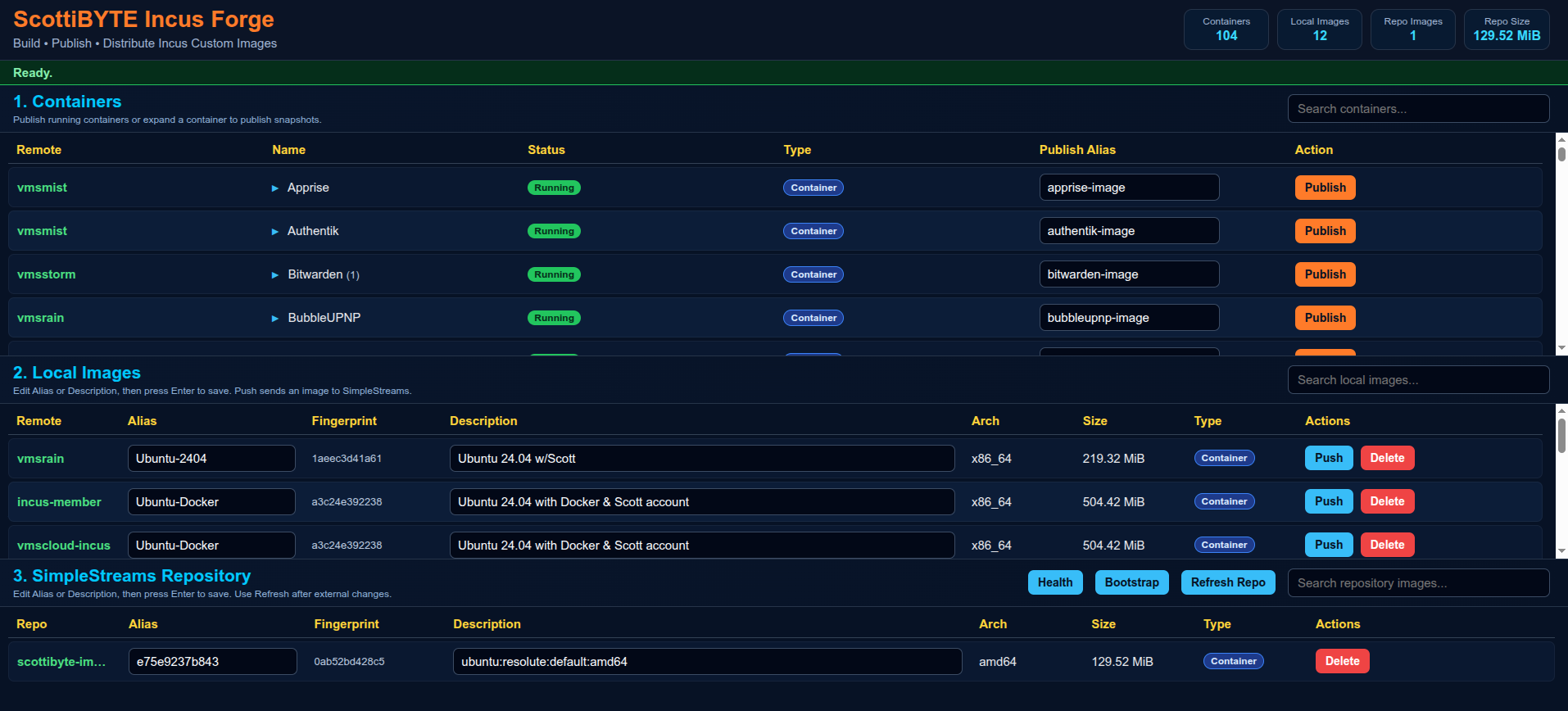
All these CLI commands are great, but they can be somewhat arduous. The ScottiBYTE Incus Forge utility was created to make this easy. Note our scott-image-also in the local image repository.
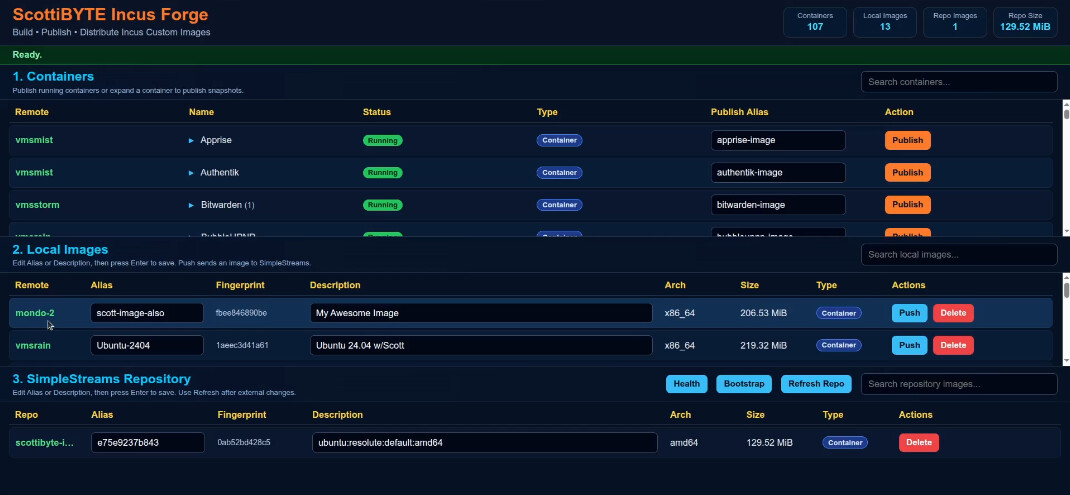
I designed the utility to be intuitive. To create a custom image, you find the container in the container listing and simply select “publish”. You can change the alias or description of an image by simply typing a new one. You can push a local custom image to your simplestreams public server if you have one simply by pressing the “Push” button.
Create an Incus container to host incusforge:
```auto
incus launch images:ubuntu/26.04 IncusForge -p default -p bridgeprofile -c boot.autostart=true -c security.nesting=true
```
Move inside the new container.
```auto
incus shell IncusForge
```
Accept updates.
```auto
apt update && apt upgrade -y
```
Install dependencies.
```auto
apt install nano curl net-tools incus-client openssh-server -y
```
Install docker.
```auto
curl https://get.docker.com | sh
```
Add a username and put the user in the sudo and docker groups.
```auto
adduser scott
usermod -aG sudo,docker scott
```
Login to the new account.
```auto
su - scott
```
Create an application folder and move inside it.
```auto
mkdir incusforge && cd incusforge
```
Edit a docker compose file.
```auto
nano compose.yml
```
Input the following into the editor.
```auto
services:
incusforge:
image: scottibyte/incusforge:latest
container_name: incusforge
restart: unless-stopped
ports:
- "80:3030"
environment:
PORT: "3030"
HOME: /home/scott
INCUS_CONF: /incus-client
CONFIG_PATH: /app/config.json
volumes:
- ./config.json:/app/config.json:ro
- ${HOME}/.config/incus:/incus-client:ro
- ${HOME}/.ssh:/home/scott/.ssh:ro
```
Be sure to change the “scott” references above to your username and then CTRL O and enter to save the file and CTRL X to exit the nano editor.
Edit the configuration file for your simplestreams public server.
```auto
nano config.json
```
Insert the following into the editor which is different than what I presented in the video.
```auto
{
"port": 3030,
"simplestreams": {
"name": "scottibyte",
"publicUrl": "https://images.mydomain.com",
"sshHost": "n.n.n.n",
"sshUser": "scott",
"webRoot": "/var/www/html",
"imageDir": "/var/www/html/images",
"streamsDir": "/var/www/html/streams"
}
}
```
Modify the name to be what you want to call your simplestreams server. Change the public URL to be a subdomain that you have defined at your DNS provider. After we create the simplestreams server you will come back and change the n.n.n.n to the address of the simplestreams server. You will also add an NginX Proxy Manager record to expose the server publically. Lastly, be sure to change the sshUser to be your username. Then save the file with a CTRL O and enter and CTRL X to exit the editor. We will come back and edit this later.
Now go back to your Incus server and create another container which we will use to host your simplestreams web server.
```auto
incus launch images:ubuntu/26.04 IncusSimplestreams -pp default -p bridgeprofile -c boot.autostart=true
```
Move inside the container.
```auto
incus shell IncusSimplestreams
```
Take the updates.
```auto
apt update && apt upgrade -y
```
Add a user.
```auto
adduser scott
```
Grant it privilege.
```auto
usermod -aG sudo scott
```
Login to the account.
```auto
su - scott
```
Install some dependencies.
```auto
apt install nano net-tools openssh-server -y
```
To make the installation of the server easier, edit this script file.
```auto
nano bootstrap-simplestreams.sh
```
Input the following into the editor.
```auto
#!/usr/bin/env bash
set -euo pipefail
WEB_ROOT="${WEB_ROOT:-/var/www/html}"
IMAGE_DIR="${IMAGE_DIR:-$WEB_ROOT/images}"
STREAMS_DIR="${STREAMS_DIR:-$WEB_ROOT/streams}"
REPO_USER="${REPO_USER:-$USER}"
echo "=== ScottiBYTE Incus Forge SimpleStreams Bootstrap ==="
echo "[1/8] Installing required packages..."
sudo apt update
sudo apt install -y nginx xz-utils python3 python3-yaml incus-extra openssh-server curl ca-certificates rsync jq
echo "[2/8] Enabling SSH..."
sudo systemctl enable --now ssh || sudo systemctl enable --now sshd
echo "[3/8] Enabling nginx..."
sudo systemctl enable --now nginx
echo "[4/8] Creating repository directories..."
sudo mkdir -p "$IMAGE_DIR"
sudo mkdir -p "$STREAMS_DIR/v1"
echo "[5/8] Setting ownership and permissions..."
sudo chown -R "$REPO_USER:$REPO_USER" "$WEB_ROOT"
sudo chmod -R 775 "$WEB_ROOT"
echo "[6/8] Creating metadata files..."
if [! -f "$STREAMS_DIR/v1/index.json"]; then
cat > "$STREAMS_DIR/v1/index.json" <<'JSON'
{"index":{"images":{"datatype":"image-downloads","path":"streams/v1/images.json","products":[],"format":"products:1.0"}},"format":"index:1.0"}
JSON
fi
if [! -f "$STREAMS_DIR/v1/images.json"]; then
cat > "$STREAMS_DIR/v1/images.json" <<'JSON'
{"content_id":"images","datatype":"image-downloads","format":"products:1.0","products":{}}
JSON
fi
echo "[7/8] Validating repository..."
command -v incus-simplestreams >/dev/null
command -v xz >/dev/null
command -v nginx >/dev/null
echo "[8/8] Bootstrap complete."
echo
echo "Repository ready."
echo
echo "Next step:"
echo "ssh-copy-id $REPO_USER@"
```
Save the file with a CTRL O and enter and CTRL X to exit the editor.
Give the script execute privilege.
```auto
chmod +x bootstrap-simplestreams.sh
```
Now run the script being sure to insert your username with the following command.
```auto
REPO_USER=scott WEB_ROOT=/var/www/html ./bootstrap-simplestreams.sh
```
That part was different from the video and should work the first time.
Find out the address of eth0 in your simplestreams container.
```auto
ifconfig
```
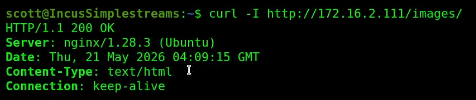
Do a curl command to the address you found to test it.
```auto
curl -I http://172.16.2.111/images
```
Now return back to the terminal for your IncusForge container and edit the config.json file.
```auto
nano config.json
```
Change the n.n.n.n address we put in the template to the actual address of your simplestreams container. Also create an NginX Proxy Manager record that exposes your simplestreams server using the subdomain you specified in the config.json using the address of the simplestreams server.
Save the config.json file and exit the editor.
Still on your IncusForge container, list your current remotes.
```auto
incus remote list
```

Edit your hosts file.
```auto
sudo nano /etc/hosts
```
Make entries for all of the Incus servers that you want to manage with IncusForge.
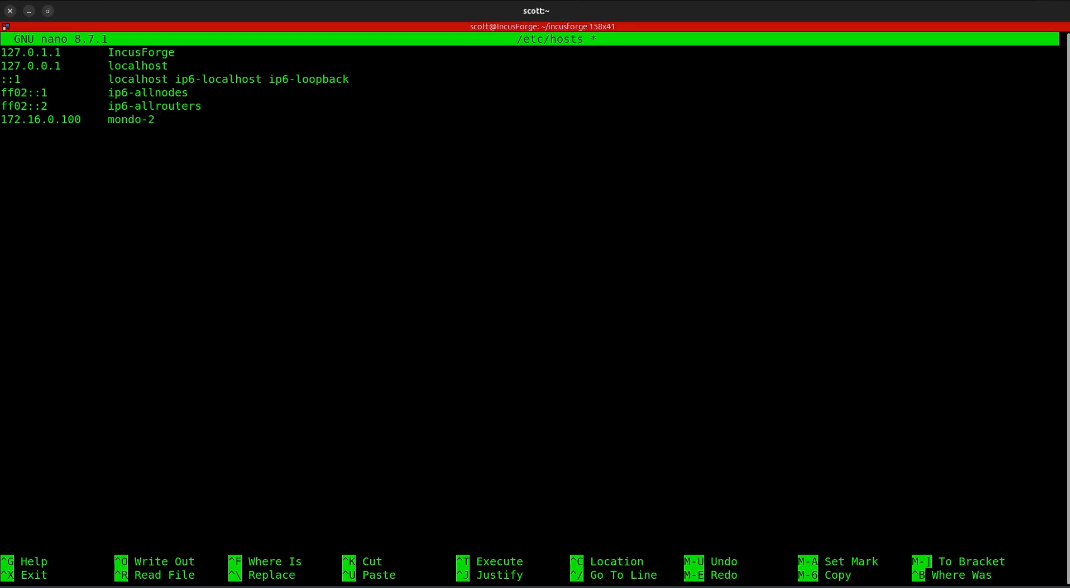
Save the file with CTRL O and enter and then CTRL X to exit the nano editor.
Here’s an example of how to add a trust for your incus server.
```auto
ssh mondo-2 "incus config trust add IncusForge"
```
The above command provides you a trust token. Then run the following command changing your system name.
```auto
incus remote add mondo-2 https://mondo-2:8443 --accept-certificate
```
Provide the password for the remote incus server and then paste the token in your received above.

You should now see your Incus server listed.
```auto
incus remote list
```

We can also add your simplestreams server adjusting for your subdomain and the name you want to call your image repository.
```auto
incus remote add scottibyte https://images2.scottibyte.com --protocol=simplestreams
```
Now we can see the simplestreams server.
```auto
incus remote list
```
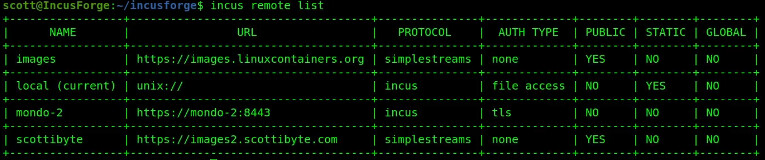
We could list the images stored on our new simplestreams server (hint: there are none yet).
```auto
incus image list scottibyte:
```

Our application is not up and running yet. Start it.
```auto
docker compose up -d
```

Check it.
```auto
docker ps
```

Do an ifconfig command to find out the IncusForge container address.
```auto
ifconfig
```
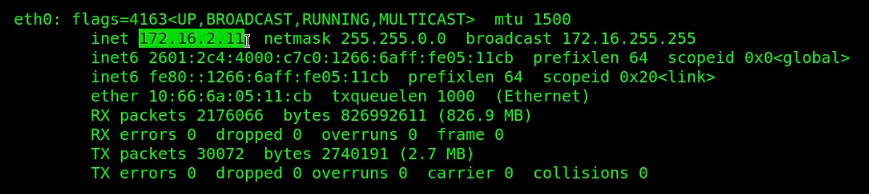
Go to your web browser and type in the address.
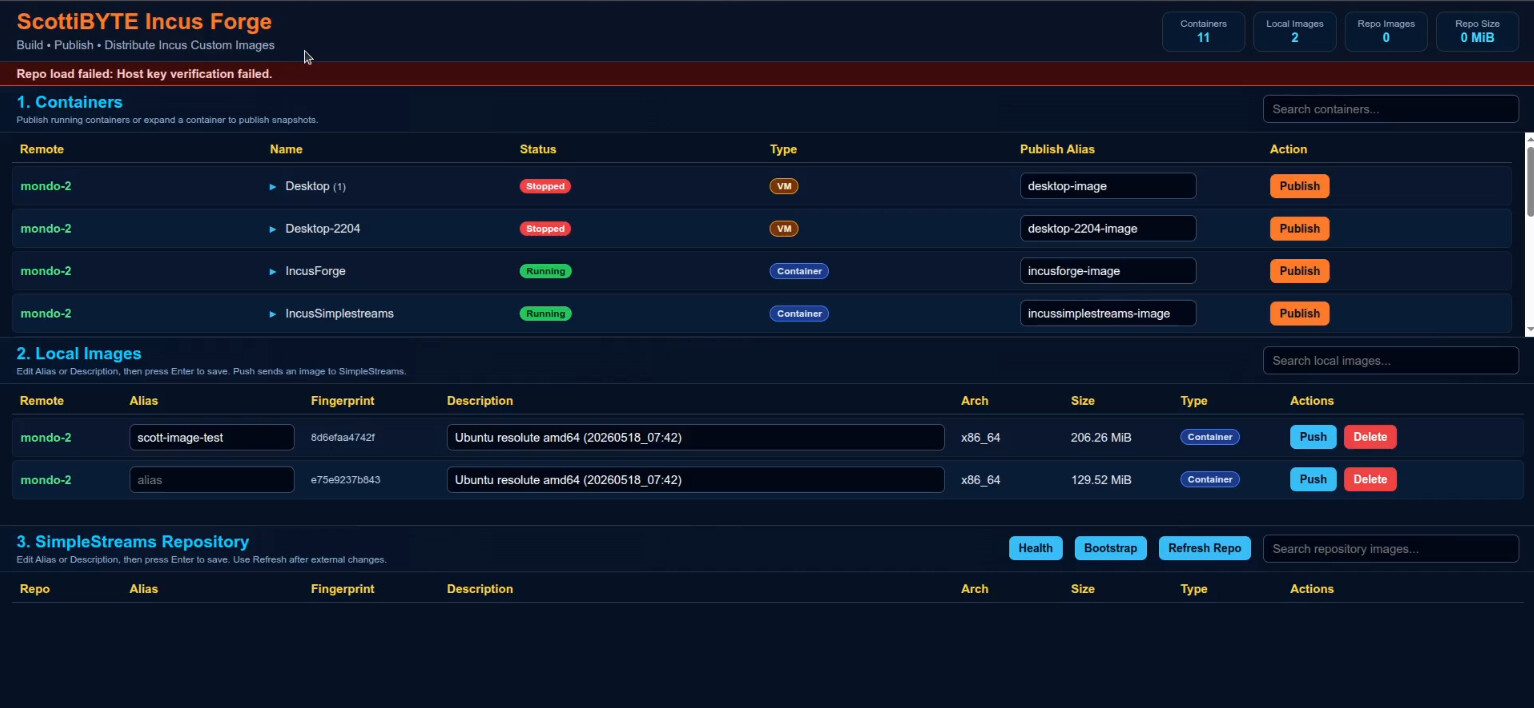
Notice the verification error above in red. That’s because we need to set up ssh keys from IncusForge to access the IncusSimplestreams container.
Create keys. Change the “scottibyte” to your repository name.
```auto
ssh-keygen -t ed25519 -C "incusforge@scottibyte" -f ~/.ssh/id_ed25519
```
Now copy the ID to the simplestrams server adjusting your username and the address of your simplestreams container.
```auto
ssh-copy-id -i ~/.ssh/id_ed25519.pub scott@172.16.2.111
```

Now restart the application to pick up the credentials we just created.
```auto
docker compose restart
```
Access the web page again and do a CTRL F5 in the web page to reset it and you should have a green “Ready” indicating that the app is running.
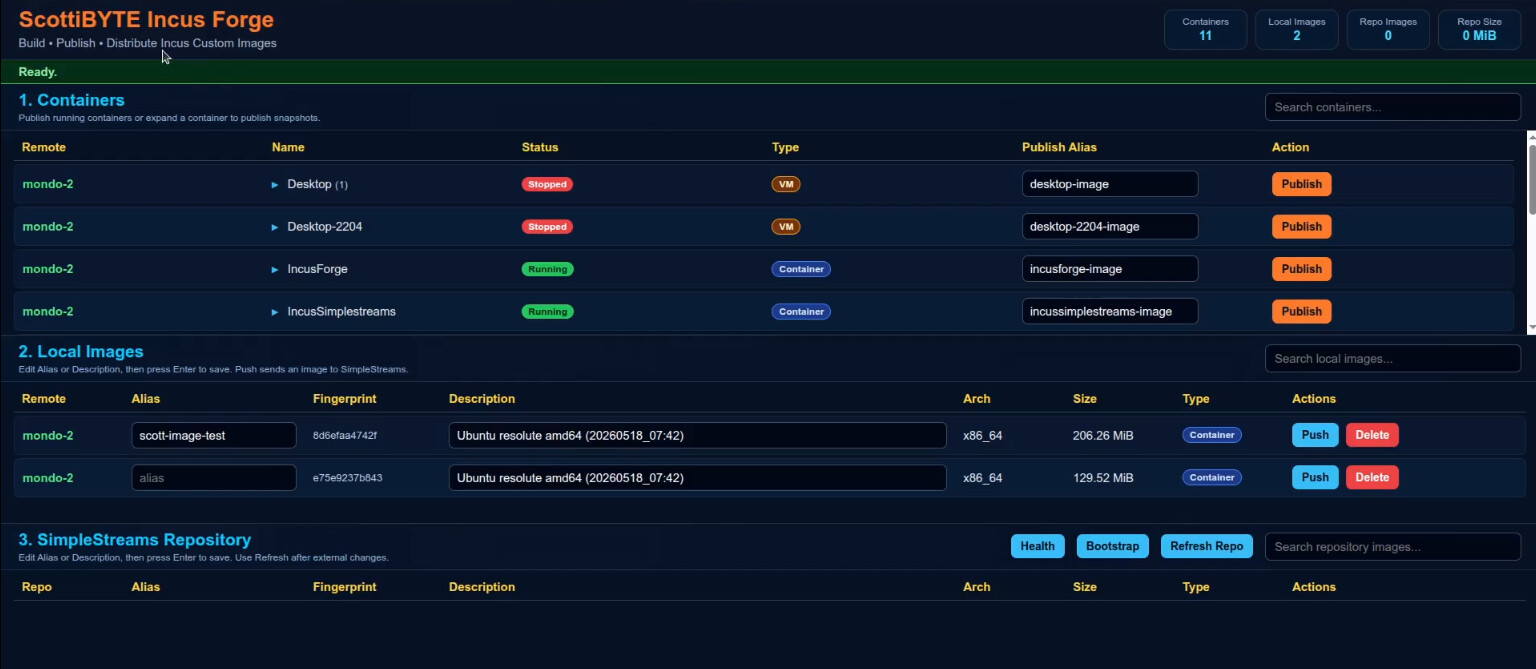
You now have a fully operational installation of IncusForge.