# Building an Ubuntu Desktop in Docker
**URL:** https://discussion.scottibyte.com/t/building-an-ubuntu-desktop-in-docker/61
**Category:** Uncategorized
**Created:** [March 13, 2022, 11:21pm UTC](https://discussion.scottibyte.com/t/building-an-ubuntu-desktop-in-docker/61 "2022-03-13T23:21:24Z")
**Posts on this page:** 3
**Page:** 1
### Author:  [@scott](https://discussion.scottibyte.com/u/scott)
#### Post date: [March 13, 2022, 11:21pm UTC](https://discussion.scottibyte.com/t/building-an-ubuntu-desktop-in-docker/61/1 "2022-03-13T23:21:24Z")
To build an Ubuntu Desktop in Docker, we will be creating our own docker image with the “docker build” command.
To do this, edit a file named dockerfile:
```auto
nano dockerfile
```
In the video, we used the following content. Make changes for your specific needs:
```auto
FROM ubuntu:latest
RUN apt update && DEBIAN_FRONTEND=noninteractive apt install -y lubuntu-desktop
RUN rm /run/reboot-required*
RUN useradd -m scott -p $(openssl passwd testing)
RUN usermod -aG sudo scott
RUN apt install -y xrdp
RUN adduser xrdp ssl-cert
RUN sed -i '3 a echo "\
export GNOME_SHELL_SESSION_MODE=lubuntu\\n\
export XDG_SESSION_TYPE=x11\\n\
export XDG_CURRENT_DESKTOP=LXQt\\n\
export XDG_CONFIG_DIRS=/etc/xdg/xdg-Lubuntu:/etc/xdg\\n\
" > ~/.xsessionrc' /etc/xrdp/startwm.sh
EXPOSE 3389
CMD service xrdp start ; bash
```
Build your image and name it. Mine is named “desktop”:
```auto
docker build -t desktop .
```
List your docker images:
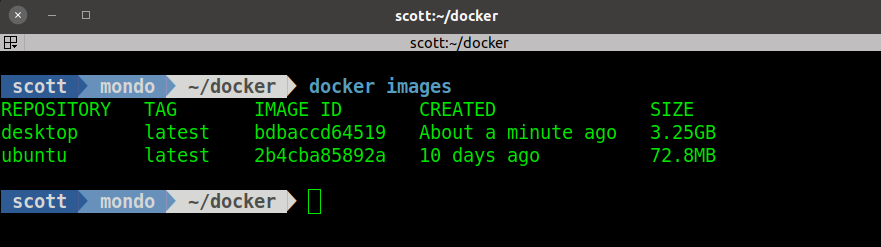
Run your desktop using the address of the docker host:
```auto
docker run -it -d --name=mydesktop -p 3389:3389 desktop
```
To create another container using the same image, but offering this container on the LAN, we create a docker network as in the previous video:
```auto
docker network create -d macvlan --subnet=172.16.0.0/16 --gateway=172.16.0.1 -o parent=enp4s0 exposed
```
Start the container on your MAIN LAN using the “exposed” network:
```auto
docker run -it -d --name=lan-desktop --net=exposed --ip=172.16.1.200 desktop
```
Remember to change the parent Ethernet device to match yours and the addresses to match your network in the examples above. Review my video entitled, “Docker Networking”
---
### Author:  [@SKJoy2001](https://discussion.scottibyte.com/u/SKJoy2001)
#### Post date: [February 25, 2024, 10:38pm UTC](https://discussion.scottibyte.com/t/building-an-ubuntu-desktop-in-docker/61/2 "2024-02-25T22:38:25Z")
Hi, this is absolutely WONDERFUL! However, can you please help me?
I am trying to get the following to work, without any luck;
- GNome
- Budgie
- Kylin
Thanks in advance. I learned a lot from you.
- Joy
---
### Author:  [@scott](https://discussion.scottibyte.com/u/scott)
#### Post date: [February 25, 2024, 10:56pm UTC](https://discussion.scottibyte.com/t/building-an-ubuntu-desktop-in-docker/61/3 "2024-02-25T22:56:14Z")
Other OS variants will require different settings. I only tested lubuntu with the lxqt login manager.